To access an individual client's profile and configure their permission, follow these navigation steps:
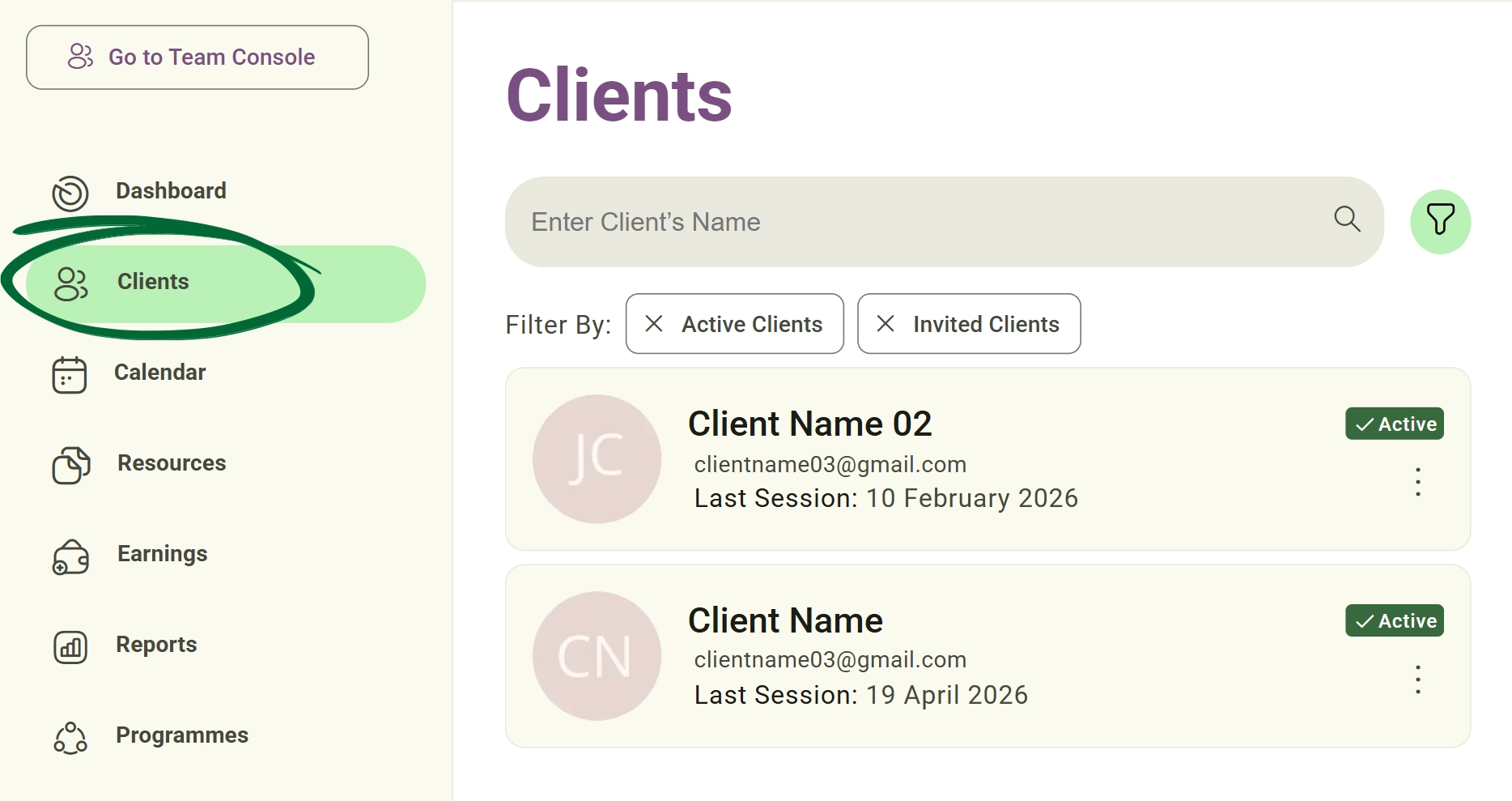
Navigate to the Clients tab from the main navigation sidebar.
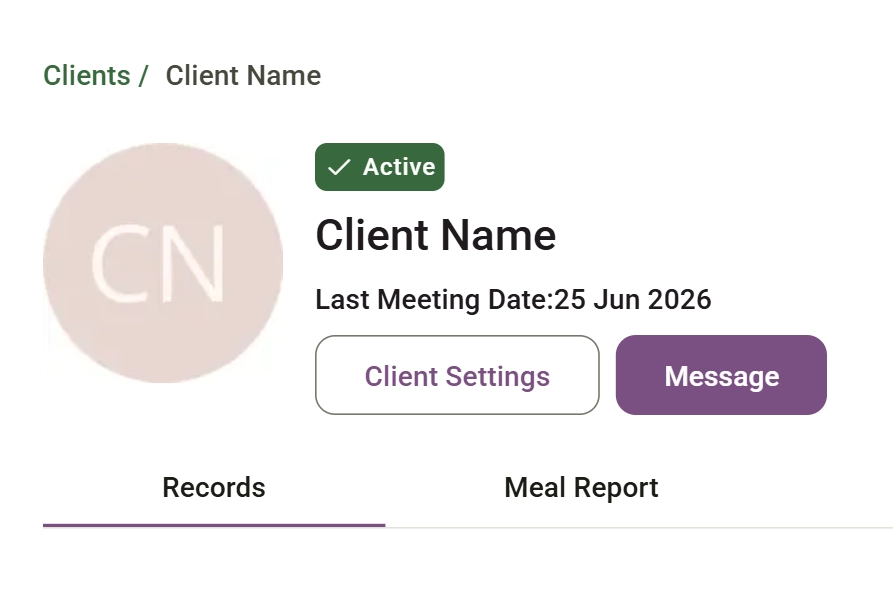
You will be redirected to the Client Profile page. At the top of the page, you can view the client's name, their current status (Active, Invited, Added, or Archived), and their last meeting date, alongside quick-access buttons for Client Settings and Direct Messages.
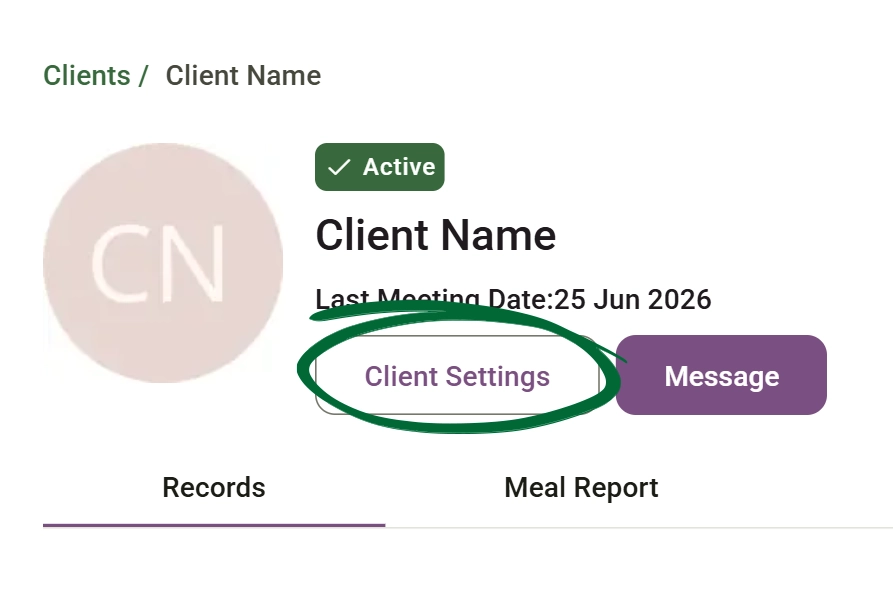
Manage what your clients can track and view on their Nurish Life app.
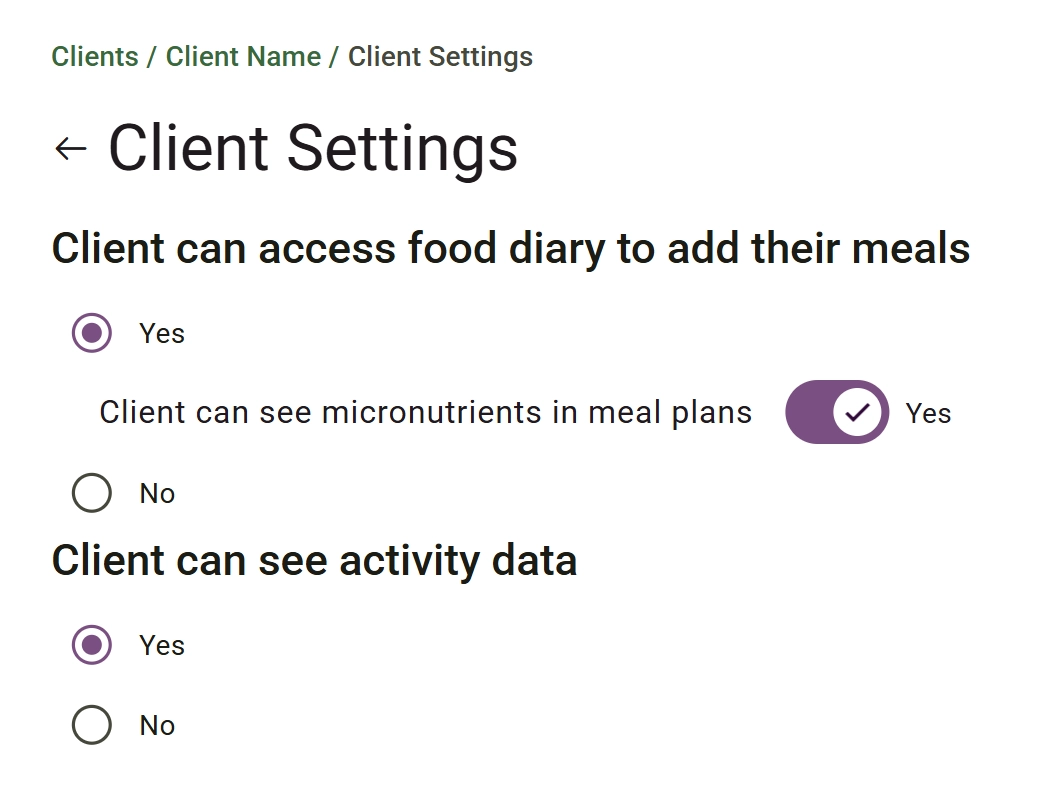
Configure the following features:
- Food Diary Access: Select Yes or No for "Client can access food diary to add their meals". If you select Yes, a secondary toggle will appear: "Client can see micronutrients in meal plans" (which you can also toggle to set to Yes or No).
- Activity Data: Select Yes or No for "Client can see activity data".
If you select No for "Client can access food diary to add their meals", the client will not be able to access the Diary tab within the Health Records sidebar menu. This prevents them from uploading their food diaries or view their automated AI analysis.
If you select Yes for "Client can see activity data", the client will be able to access the wearables Activity tab within their Health Records to view charts and graphs for their general data or information collected from connected devices, including: Steps, Workouts, Burn Rate, and Sleep
Why would I hide micronutrients or activity data from a client?
How does a client upload food diaries for AI analysis?
Can I change these app permissions at any point during a client's programme?
Issue: The "Client Settings" or "Message" buttons are greyed out / unclickable.
Issue: Client cannot see the 'Diary' tab or upload meals in their app
Next Step
Your client settings are configured! Now, explore Client Records & Data Management to learn how to manage clinical folders, add records, and use AI extraction.
Go to Client Records