Building Clinical Forms & Questionnaires

Design bespoke intake forms and clinical assessments tailored to your practice.

Streamline your data collection by creating custom forms, using templates, and automating the dispatch process to your clients.  

Create a New Form

Create a new form from scratch, tailored specifically to your needs.
1
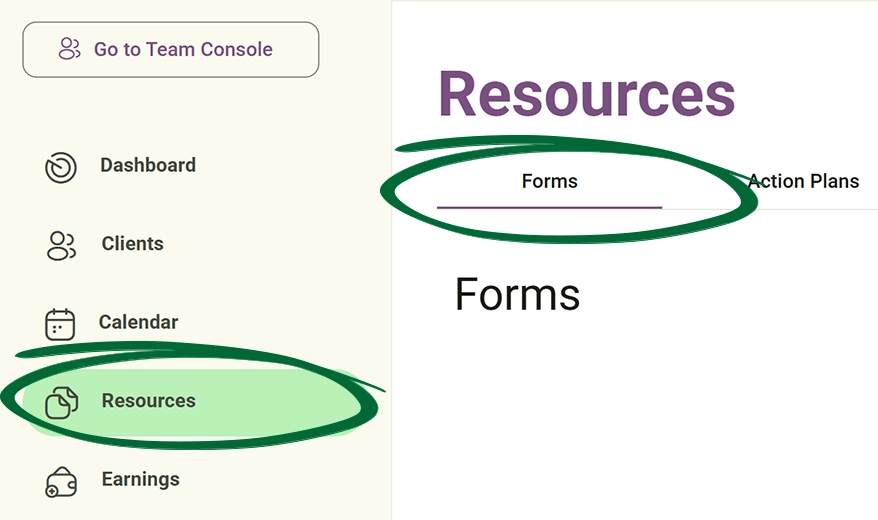
Go to Resources
Navigate to the Forms section within the Resources tab.
Go to Resources-forms screenshot
2
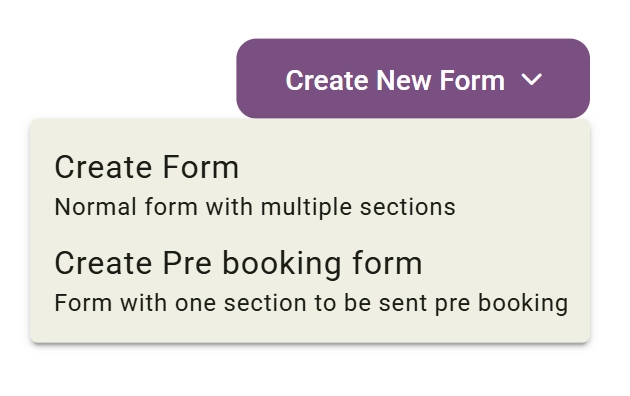
Create New Standard Form

Create comprehensive forms designed to collect detailed client information throughout the client journey. Standard Forms are ideal for intake assessments, health questionnaires, feedback surveys, and ongoing client data collection. 

Click "Create Form" to begin building your form.
Select Template (Optional) screenshot
3
Create Pre-Booking Form
Create lightweight forms designed to collect information before a client books a service. These forms are commonly used for: Eligibility screening and Pre-consultation questionnaires Unlike standard forms, Pre-booking Forms support: Simpler layouts, Quick lead qualification and Faster completion experiences
4
Start Editing
The form builder will open, allowing you to begin customising.
Tip: Use Pre-booking Forms to collect essential information before allowing clients to schedule appointments.
Add & Customise Questions

Build your form using a variety of interactive question types.

1
Add Question

Select a question type from the top-right dropdown menu button. Nurish Pro supports multiple interactive question formats, including: Text Answer, Long Answer, Multiple Choice, Select Options, Table Questions, Grid Tables (Multiple Choice or Single Choice), Date & Time, Rich Text Blocks, Signature Fields, and File/Image Support.

Use table questions for medications, supplements, or symptom tracking.
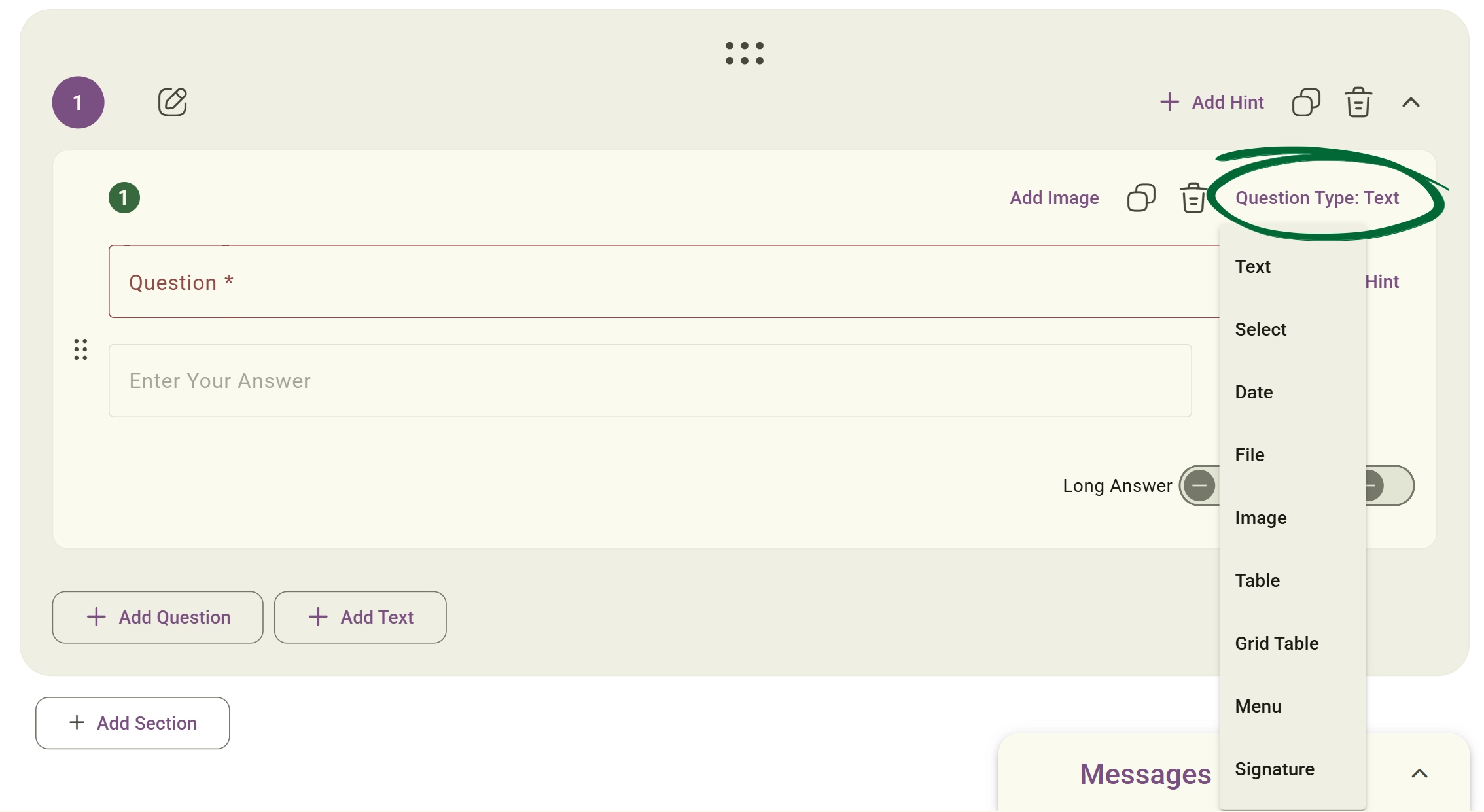
Select a question type screenshot
2
Choose Table Type

Select the table layout that best matches the information you want clients to complete.
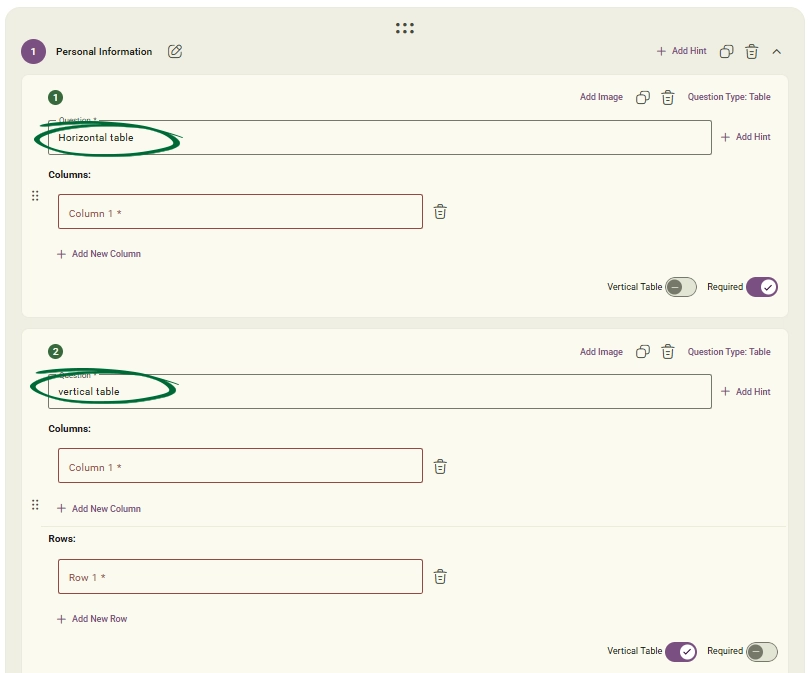
Choose Tables screenshot
3
Table Type

A "Horizontal Table" places questions or labels across the top row, with users filling answers horizontally underneath. This layout is ideal for side-by-side comparisons, structured data entry across columns, and rating or comparison forms.

A "Vertical Table" places labels vertically on the left side and in the header row, with users entering answers directly beside them. This layout is ideal for detailed client information, traditional form-style layouts, and clinical or assessment-based forms.
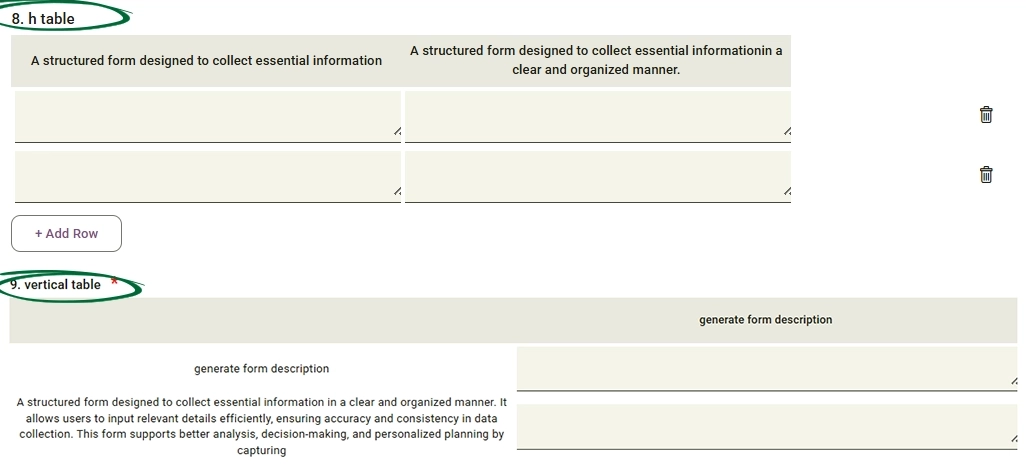
Table screenshot
4
Grid Table Types

A "Multiple-Choice" Grid Table presents questions or labels in rows and options in columns, using checkboxes. This layout allows users to select more than one option per row, making it ideal for tracking multiple symptoms, or complex preferences.

A "Single-Choice" Grid Table presents questions or labels in rows and options in columns, using radio buttons. This layout restricts users to selecting only one option per row, making it perfect for standard rating scales, or frequency tracking (e.g., Daily/Weekly/Never).
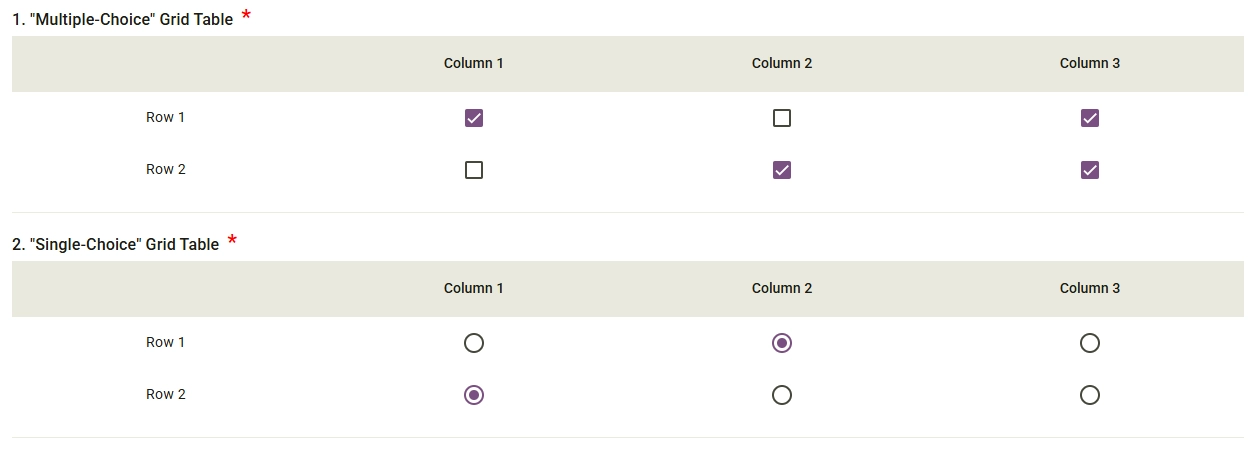
Grid Table Screenshot
5
Edit Content
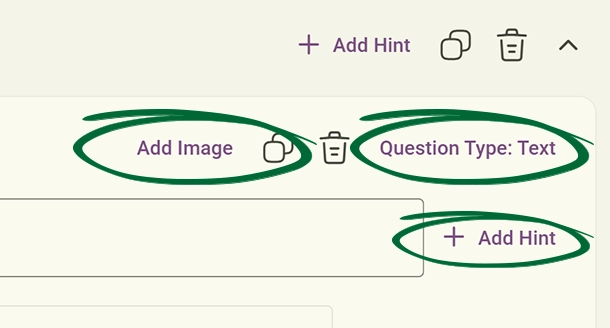
Write your specific question and carefully adjust the wording to ensure absolute clarity for the responding client; you may also incorporate a reference image or provide an instructional hint to further guide their response.
Edit Content screenshot
6
Long Answer & Required Toggles

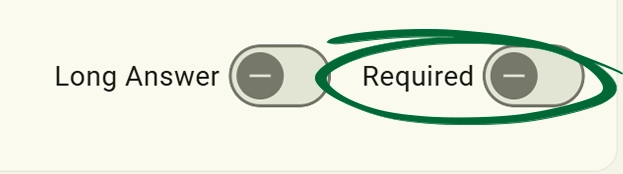
Toggle the Required switch for mandatory questions such as: Contact details, Consent confirmations and Medical information. 

Use Long Answer for: Medical history, Lifestyle descriptions and Detailed clinical responses
Set Requirements screenshot
7
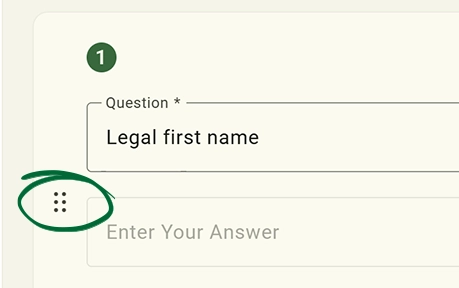
Arrange Questions
Drag and drop questions to reorder them for a logical flow.
Arrange Questions screenshot
8
Organise Forms into Sections

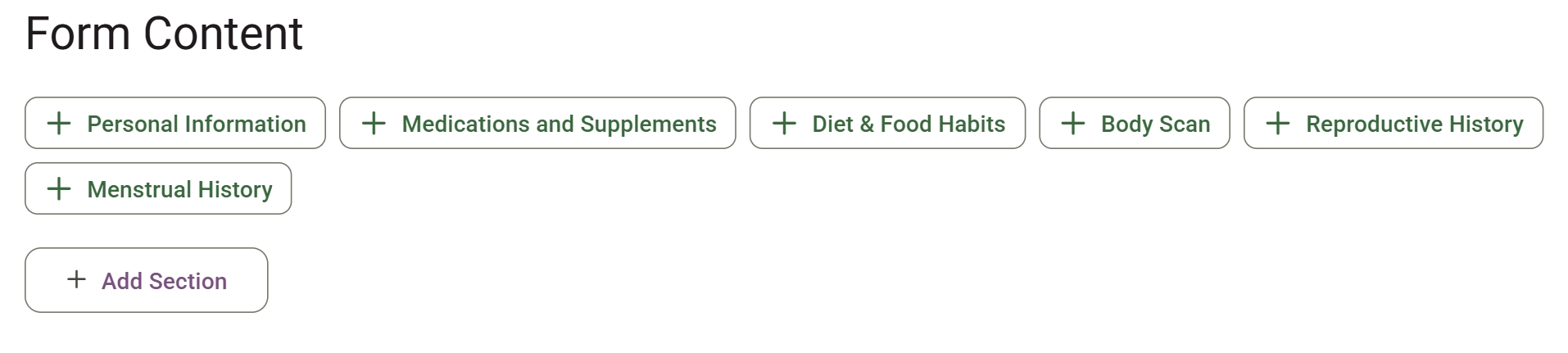
Group questions into organised sections for easier navigation and better completion rates. Common examples include: Personal Information, Medications & Supplements, Diet & Food, Habits Body Scan, Reproductive History and Menstrual History. 

Click "Add Section" to create and rename your section. You can easily drag to reorder them, and collapse or expand sections while editing.
Arrange Questions screenshot
9
Duplicate or Delete Questions

Quickly manage question blocks while building your form. You can duplicate or delete questions, duplicate or remove sections, and save time when building similar assessments.

Arrange Questions screenshot
Tip: Structured forms improve readability and reduce incomplete submissions.
Form Management Options

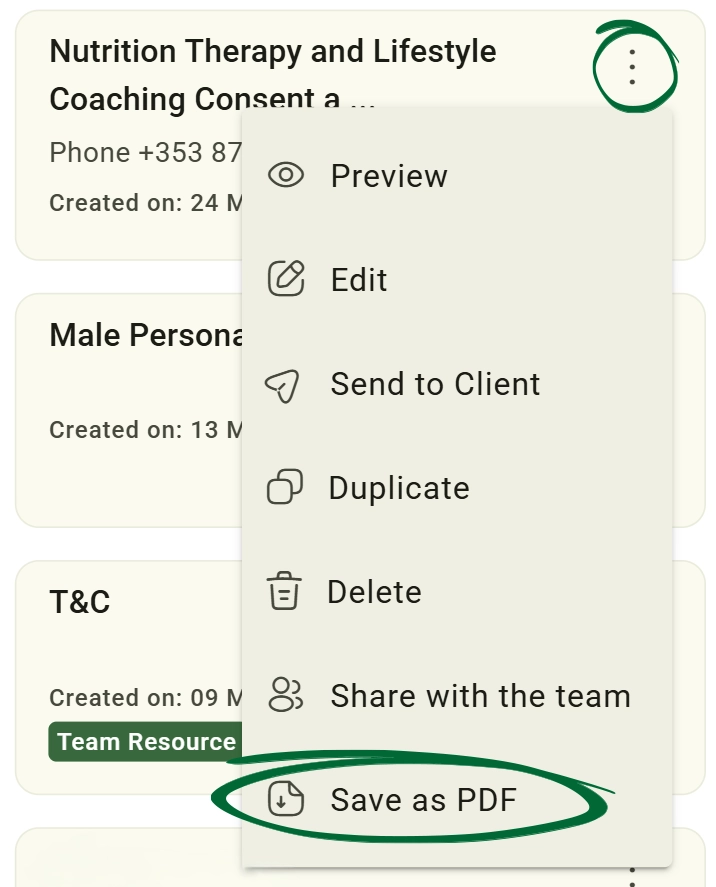
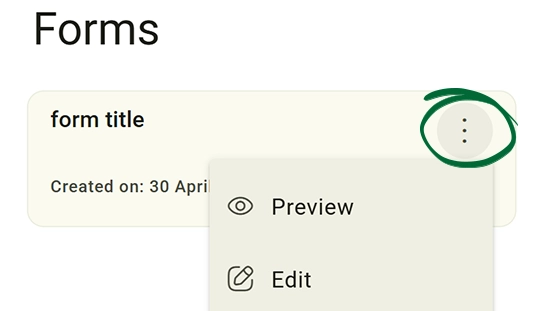
Access additional form actions from the options menu (⋮).

1
Available actions include:

Preview Form 

Edit Form 

Send to Client 

Duplicate Form 

Delete Form 

Share with the Team 

Save as PDF

Select Existing Form screenshot
Tip: Use “Save as PDF” to archive templates or share copies externally.
Duplicate a Form

Reuse your best-performing forms to quickly create variations for different services.
1
Select Existing Form
Open the specific form you wish to replicate.
Select Existing Form screenshot
2
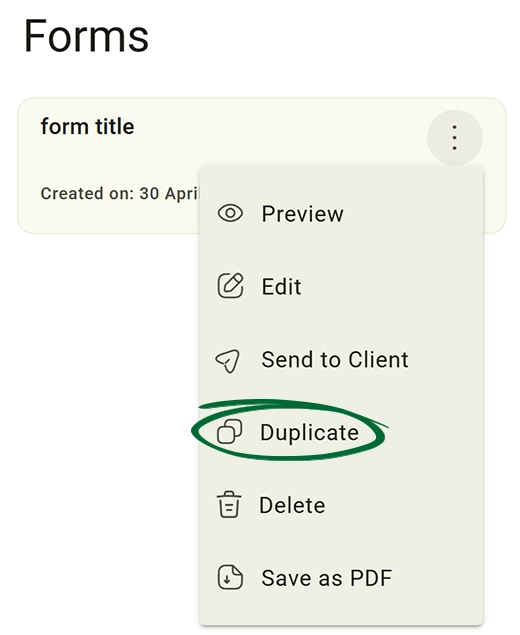
Click “Duplicate Form”
This creates an exact copy within your forms list.
Click “Duplicate Form” screenshot
3
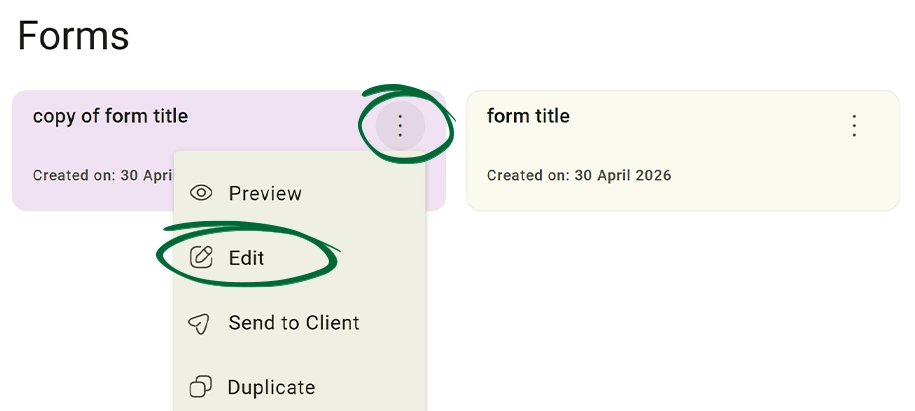
Edit the Copy
Adjust questions or headers as needed for the new version.
Edit the Copy screenshot
4
Update Form
Rename it (e.g., "Follow-up Form") and save.
Tip: Duplicate your standard intake forms to quickly create specialized versions for different health conditions.
Team Shared Forms

Forms marked as Team Resource can be shared across practitioners within the same workspace. (Note: This feature is exclusive to Team and Enterprise subscriptions.)
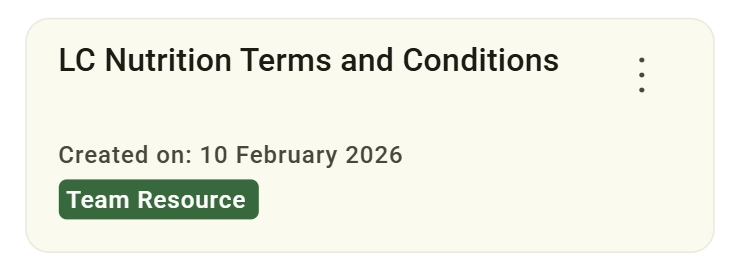
1
This helps teams:
Standardise onboarding, Maintain consistent assessments and Share approved templates internally
Edit the Copy screenshot
Send a Form to a Client

Deliver forms directly to clients or set them to send automatically upon booking.
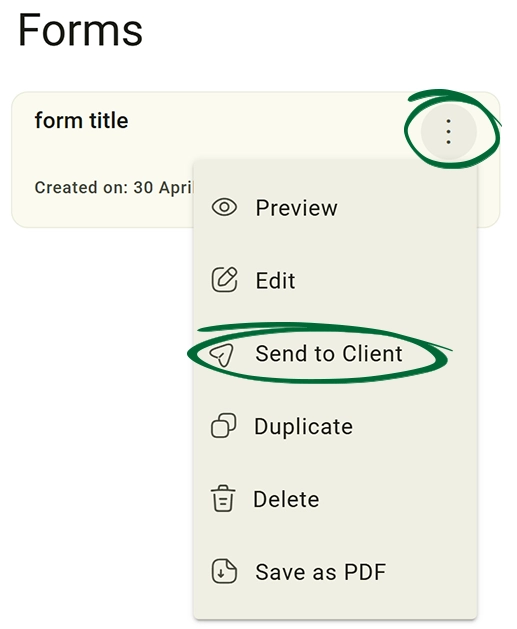
1
Go to Resources
Locate your desired form in the Resources > Forms tab.
Go to Resources-forms screenshot
2
Open Forms
Navigate directly to the Forms tab to view your complete library of active forms.
3
Create or Select a Form
Create a new document from scratch or purposefully choose an existing, finalised form ready for distribution.
4
Click “Send to Client”
Open the primary options menu (⋮) associated with the document and select the “Send to Client” directive.
Send to Client screenshot
5
Select Client
Search for the client in your database.
6
Confirm Sending
Click Send to deliver the form via: Email and Client Portal
Tip: Use the search bar to quickly find a client when sending forms.
Link Form to Programme

Automatically send forms when a client books. Link a specific form to a particular service or group class session (e.g., an "Intake Form" for an "Initial Consultation").
1
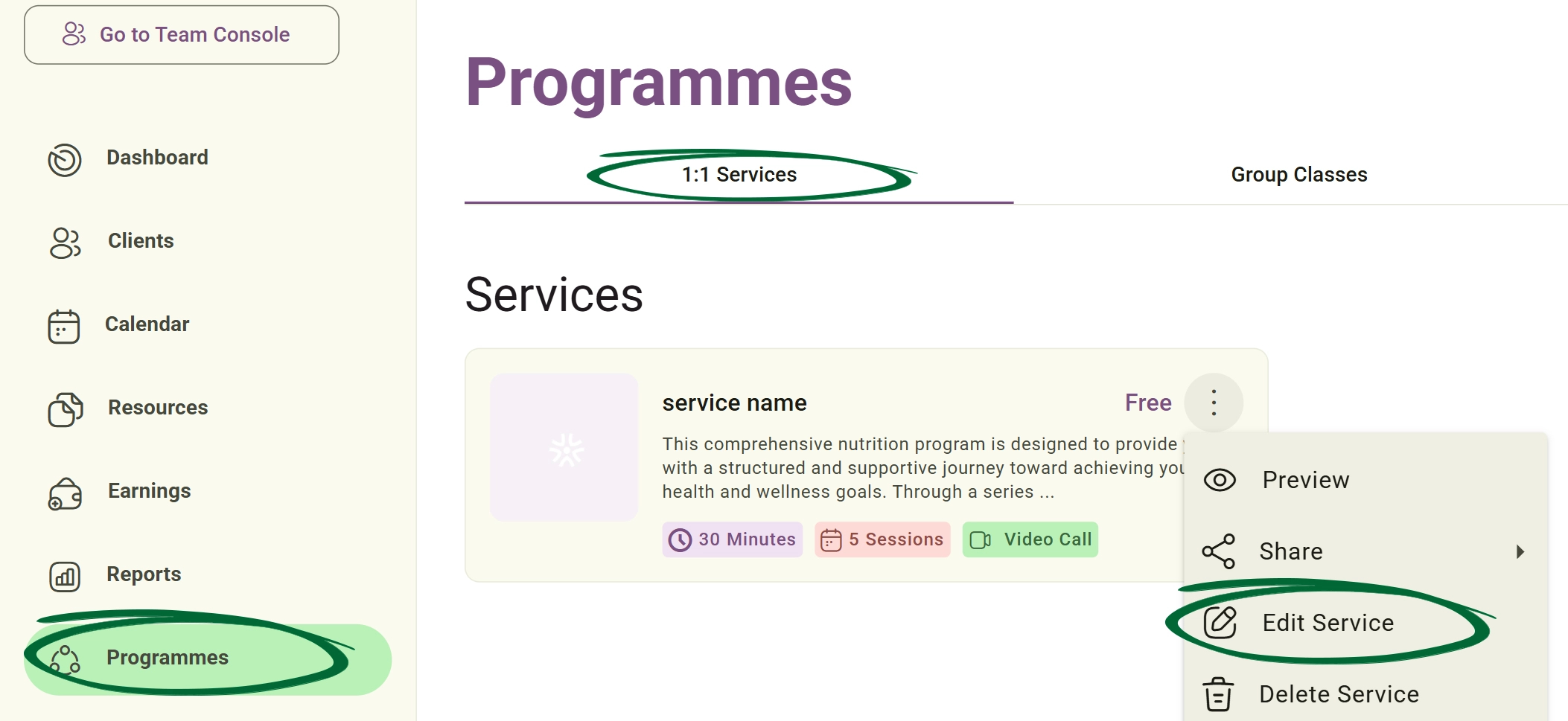
Go to Programmes
Open your Services, choose a specific service, and click Edit Service.
Go to Services screenshot
2
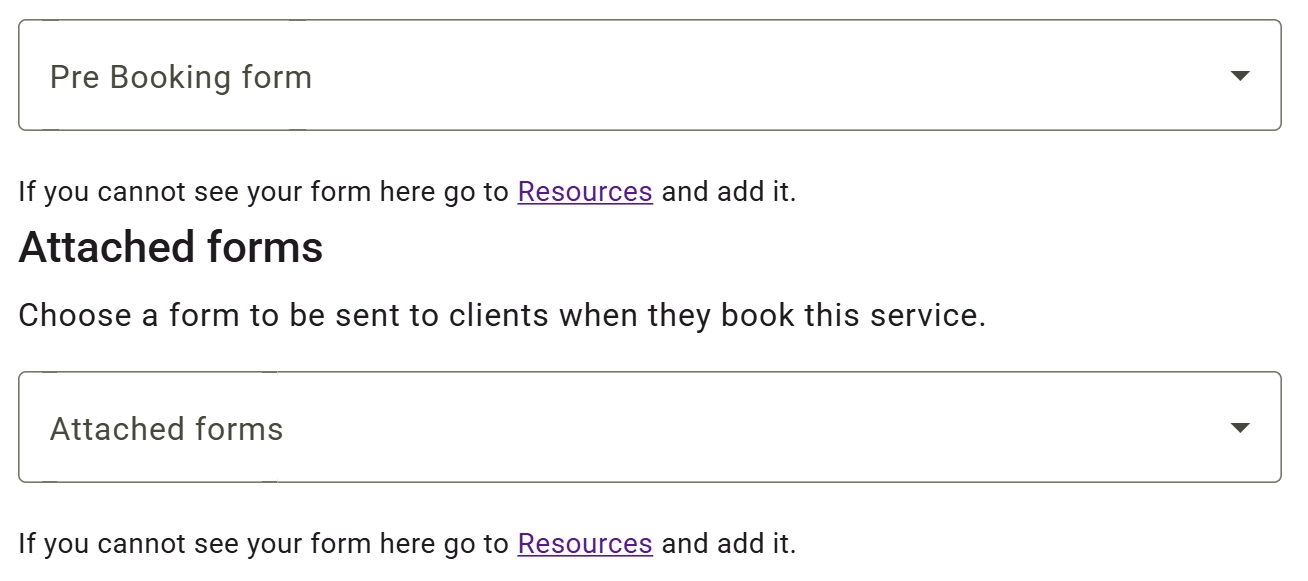
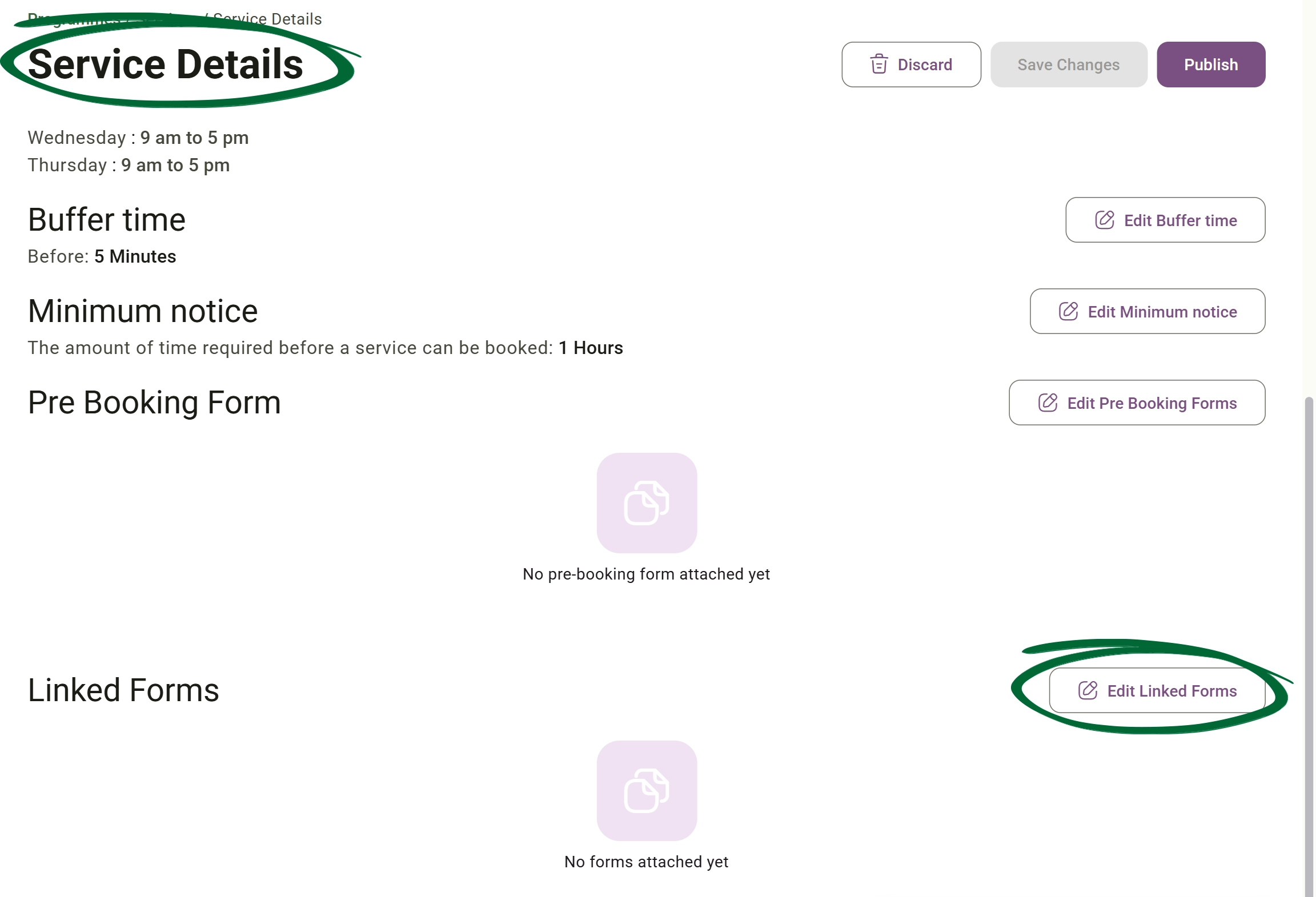
Attach Form
Click the Edit Linked Forms button to attach your required forms.
Attach Form screenshot
3
Configure Service Forms
Select the forms that should be automatically sent to clients.
Enable Automation screenshot
4
Save Settings
Apply changes to automate your workflow.
Tip: Automating "pre-booking" and "linked" forms ensures all required information is collected before and after session.

Forms can be seamlessly attached to Group Class sessions when creating a new class or editing an existing one. To manage forms for an existing group class:
1
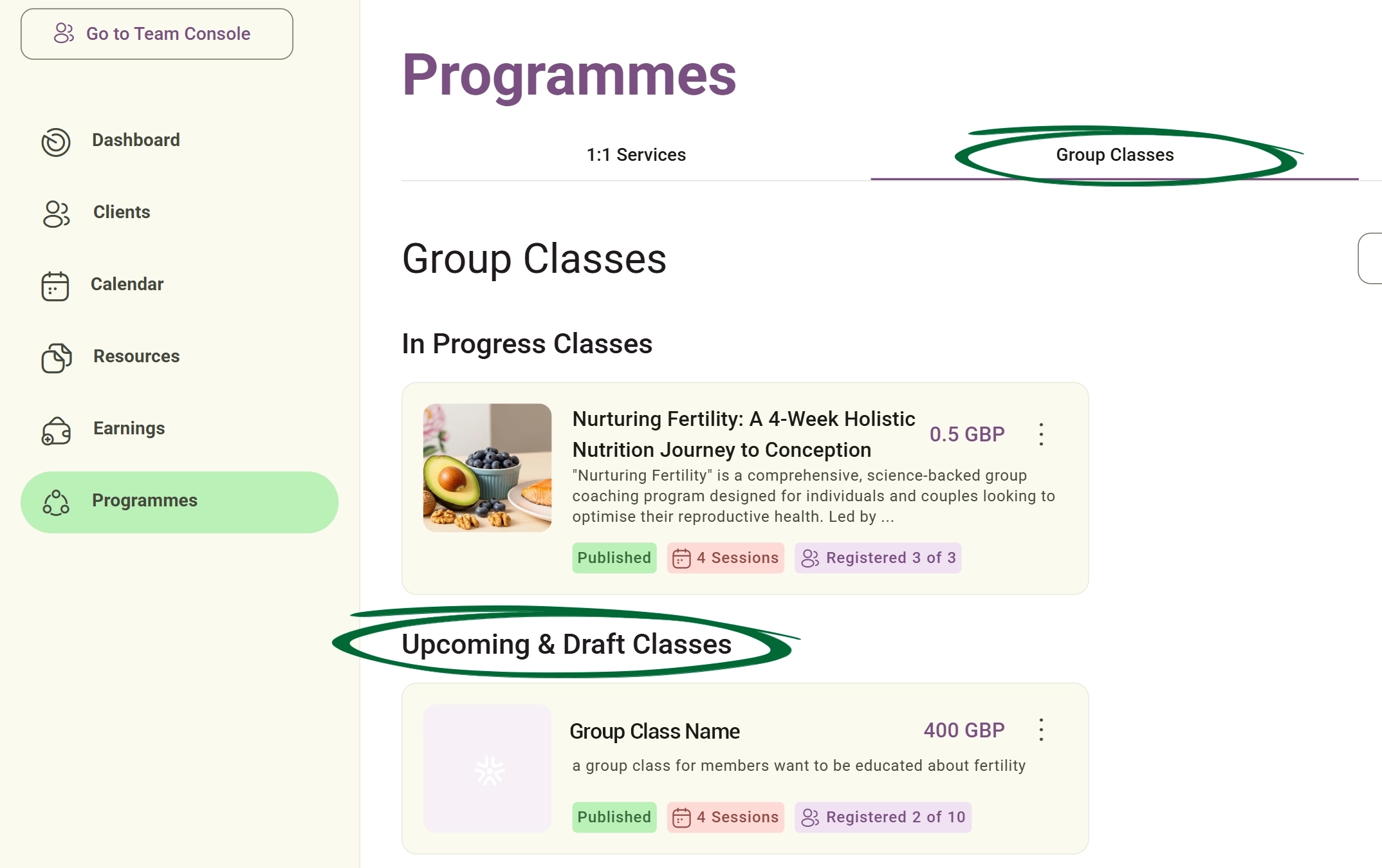
Go to Programmes
Navigate to Group Classes.
Go to Group classes screenshot
2
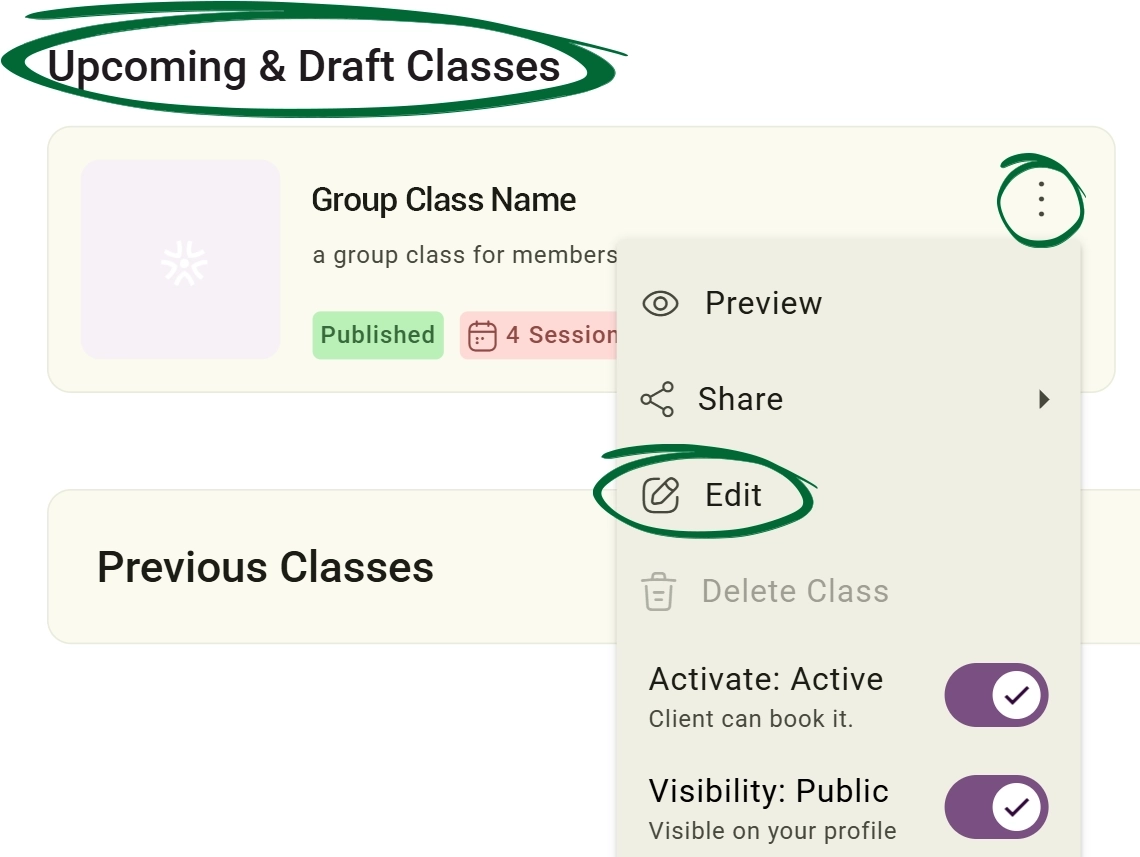
Open a Draft or Upcoming Group Class
Click Edit.
Open a Draft or Upcoming Group Class screenshot
3
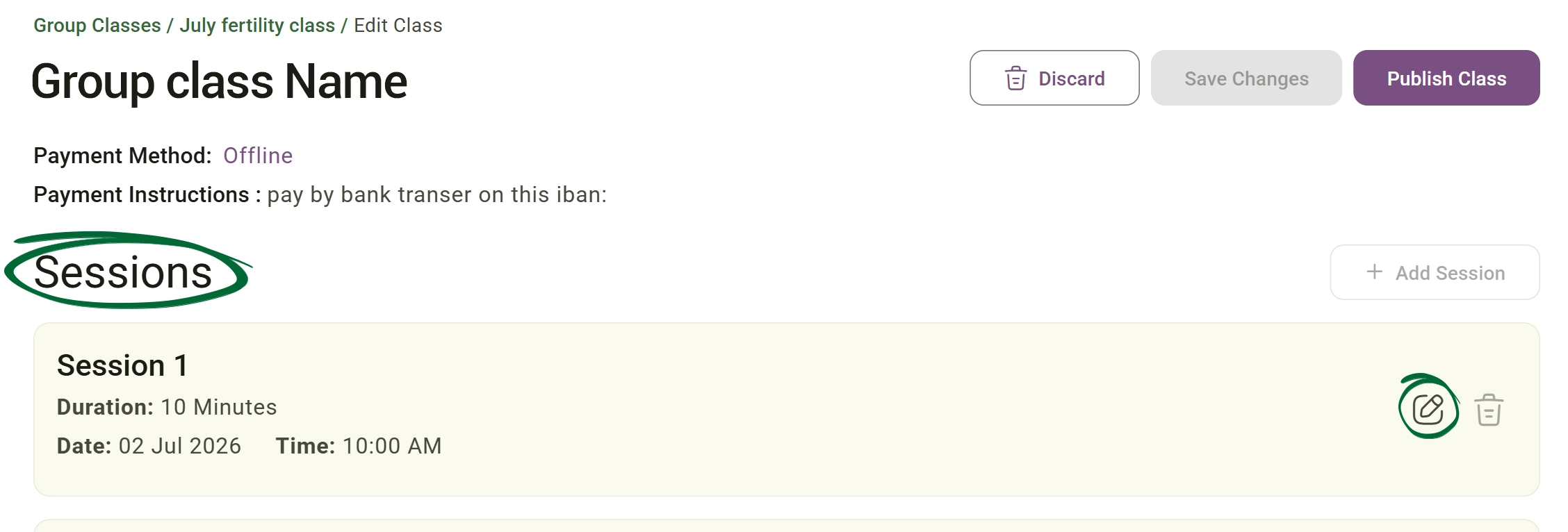
Go to the session you want to modify
click Edit Session.
 Edit Session screenshot
4
Open the Linked Forms section
Click Add Form to attach the required forms
 Click add form screenshot
Note: Please note that forms can only be added or edited for sessions within Draft or Upcoming Group Classes. Forms cannot be modified for completed or past Group Class sessions.
Save as PDF

Export a form as a document

1
Open Options Menu (⋮)
Select the menu on the desired plan.
2
Click “Save as PDF”
Select the export option from the top menu.
Click “Save as PDF” screenshot
3
Download File
Save the PDF locally for your external records or audits.
Preview Forms Before Publishing

Preview your form exactly as clients will see it before saving or sharing.

1
Click Preview
Review the layout and question flow
2
Click “Edit”
Return to editing if changes are needed
3
Click “Save”
Save the final version.
Tip: Always preview long forms to ensure spacing and ordering appear correctly.
Frequently Asked Questions (FAQs)
Can a client edit their responses after submitting a form?
Yes. Clients can update or edit their submitted responses if changes are needed after submission.
Can I share a form with someone who isn't a client in my database?
Forms are currently designed to be linked to client profiles for secure data tracking. To send a form to a new client, first add them as "Client" in your database.
What are Clipboards used for?
Clipboards allow practitioners to save and reuse frequently used text blocks such as: Consent paragraphs, Instructions, Disclaimers and Educational content This helps standardise communication and save time while building forms.
Troubleshooting & Common Issues
Issue: Client cannot find the form
Potential Solution: Ask the client to check their portal or junk folder. You can resend the form from the Options (⋮) menu.
Issue: Form changes not saving
Potential Solution: Ensure you have a stable internet connection. Check for any required fields in the builder that may have been left empty during configuration.
Issue: Automation didn't trigger
Potential Solution: Verify that the form is correctly linked to the specific Service or Group Class the client booked.

Next Step

Your form setup is complete! Continue to AI & Notes to learn how to further streamline your clinical documentation.

Go to AI & Notes
Contact Support

Need Help?

Email Support: [email protected]