The Global Clipboard

Capture and reuse essential clinical information across your workflow. The Global Clipboard is your personal repository for reusable text snippets, clinical recommendations, and common follow-up messages. Use it to eliminate repetitive typing and maintain consistency across your client communications.

Add to Clipboard

Save your most-used content for instant access anywhere in the platform.
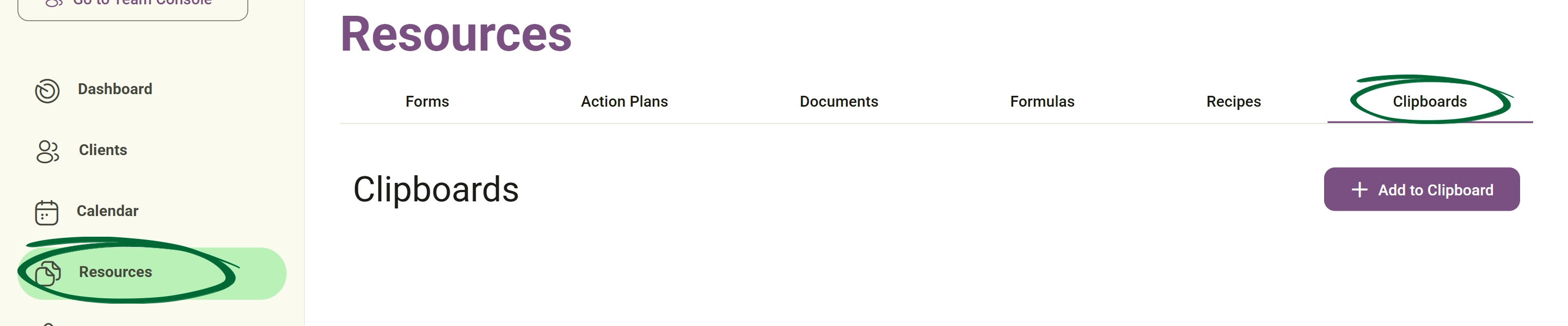
1
Go to Clipboard
Navigate to Resources → Clipboard
Open Brand Settings screenshot
2
Click “Add to Clipboard”
Open the new entry creator.
3
Add Title
Enter a clear, descriptive title (e.g., “Post-Session Follow-up” or “DASH Diet Overview”).
4
Add Content
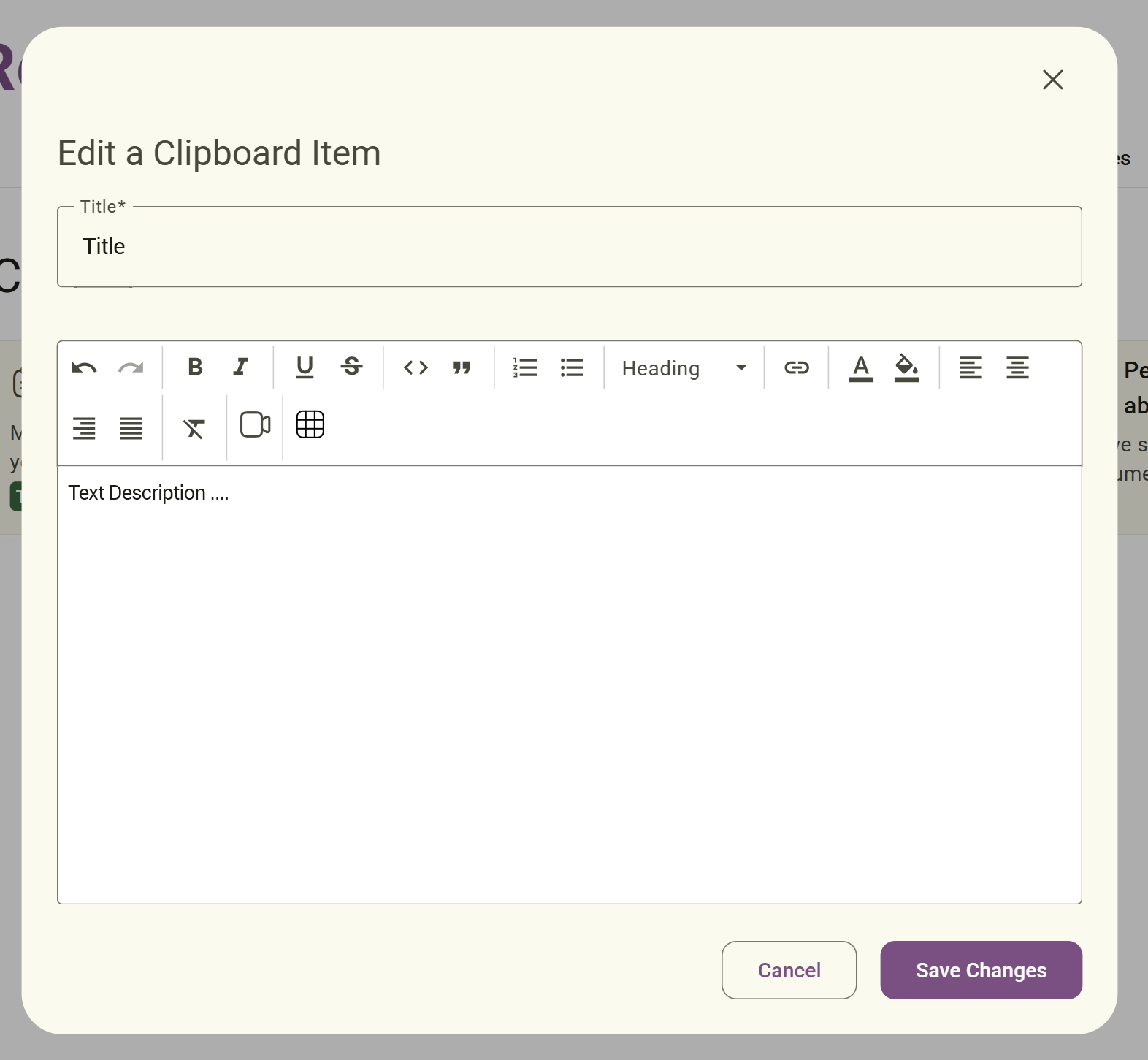
Write or paste your reusable content directly into the editor, which may include clinical recommendations, follow-up messages, meal suggestions, educational guidance, and practitioner notes.
5
Use Rich Text Formatting
The Clipboard editor supports: Bold, Italic, Underline, Lists, Headings, Links, Quotes, Tables, Media embedding and Text alignment
6
Click “Save Changes”
Confirm to store the snippet in your library.
Tip: Save commonly used recommendations or introductory messages to significantly speed up your documentation and messaging workflow.
View Clipboard Items

Access and browse your library of saved clinical snippets.
1
Go to Clipboard
Open the clipboard section under Resources.
Go to Clipboard screenshot
2
Browse Items
Scroll through your list or use the search bar to find specific entries.
3
Select Item
Click on any entry to view the full content or copy it for use in a client note or message.
Edit a Clipboard Item

Keep your snippets up to date as your clinical practice evolves.
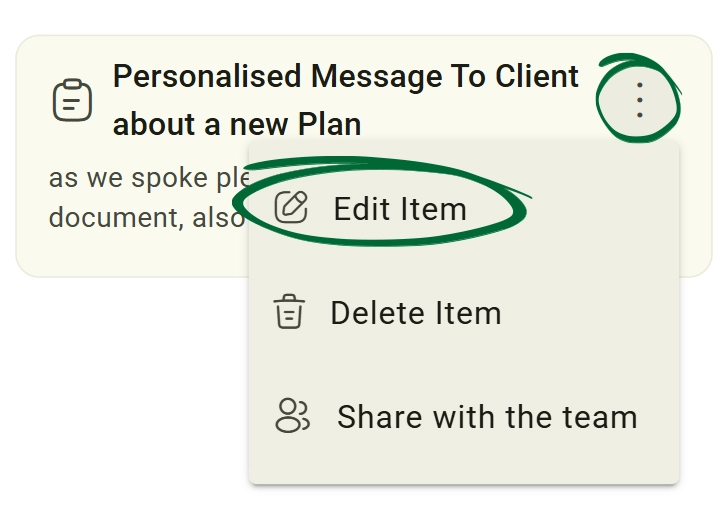
1
Open Options Menu
Click the three dots on the item you wish to modify.
2
Click “Edit Item”
Re-open the content editor for that specific snippet.
send invitation screenshot
3
Update Content
Make your necessary adjustments to the text or title.
4
Modal-Based Editing
Clipboard items can be edited directly from a popup window without leaving the current page.
5
Click “Save Changes”
Apply the updates to your library.
Delete a Clipboard Item

Maintain an organized workspace by removing outdated or redundant entries.
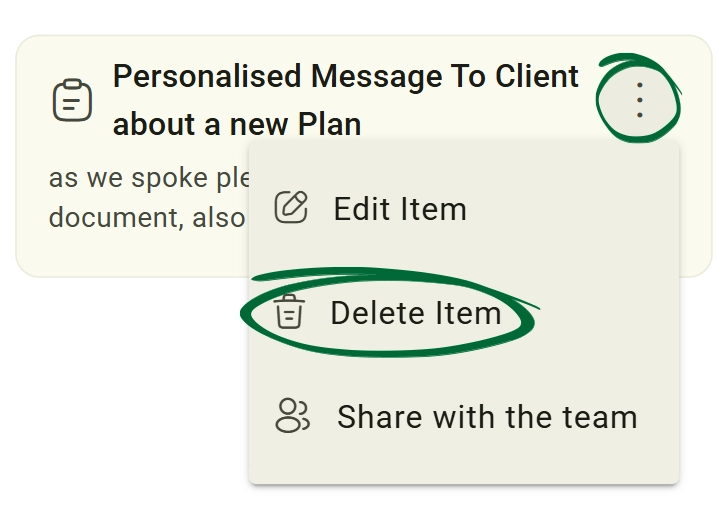
1
Open Options Menu
Click the three dots on the entry you no longer need.
2
Click “Delete Item”
Select the removal option.
Click “Delete Item” screenshot
3
Confirm Deletion
Acknowledge the prompt to permanently remove the item.
Tip: Regularly audit your clipboard to delete outdated clinical guidelines or duplicated items to keep your search results clean.
Share Clipboard Items with Your Team

Share useful clipboard resources with other practitioners in your workspace. (Note: This feature is exclusive to Team and Enterprise subscriptions.)
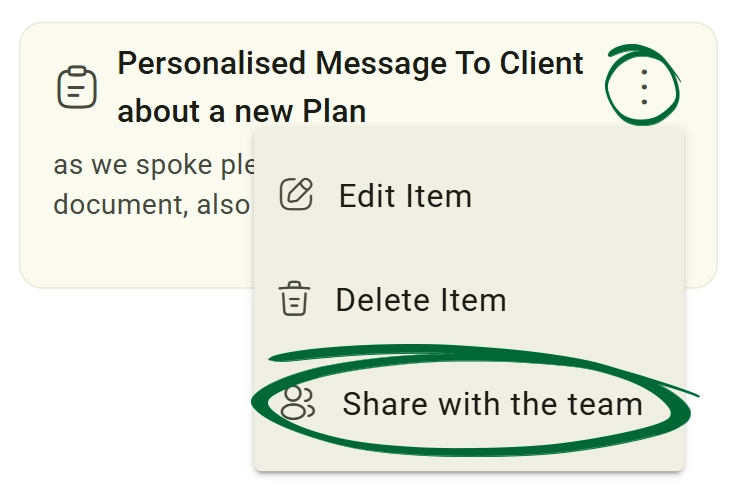
1
Open Options Menu
Click the three dots on the entry you no longer need.
2
Click “Share with the team”
Enable sharing for the selected item.
Click “Share with the team” screenshot
3
Confirm Sharing
The clipboard item will become accessible to other practitioners within the workspace.
4
Team Resource Labels

Shared clipboard items will display a: Team Resource badge on the item card. 
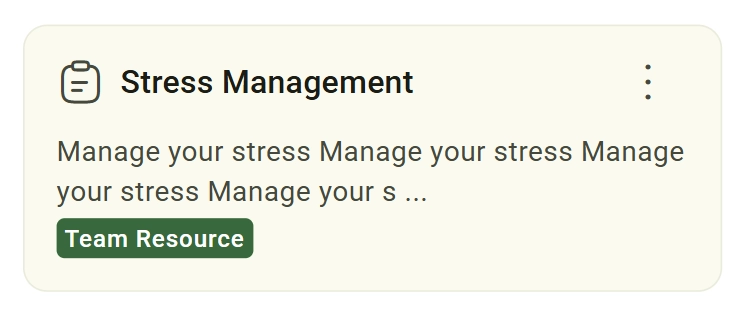
Team Resource Labels screenshot
Clipboard Usage Across the Platform

Use Clipboard snippets directly inside supported editors across the platform.
1
Open a Supported Editor
Clipboard integration is available inside: Documents, Forms, Emails, Notes and Action Plans
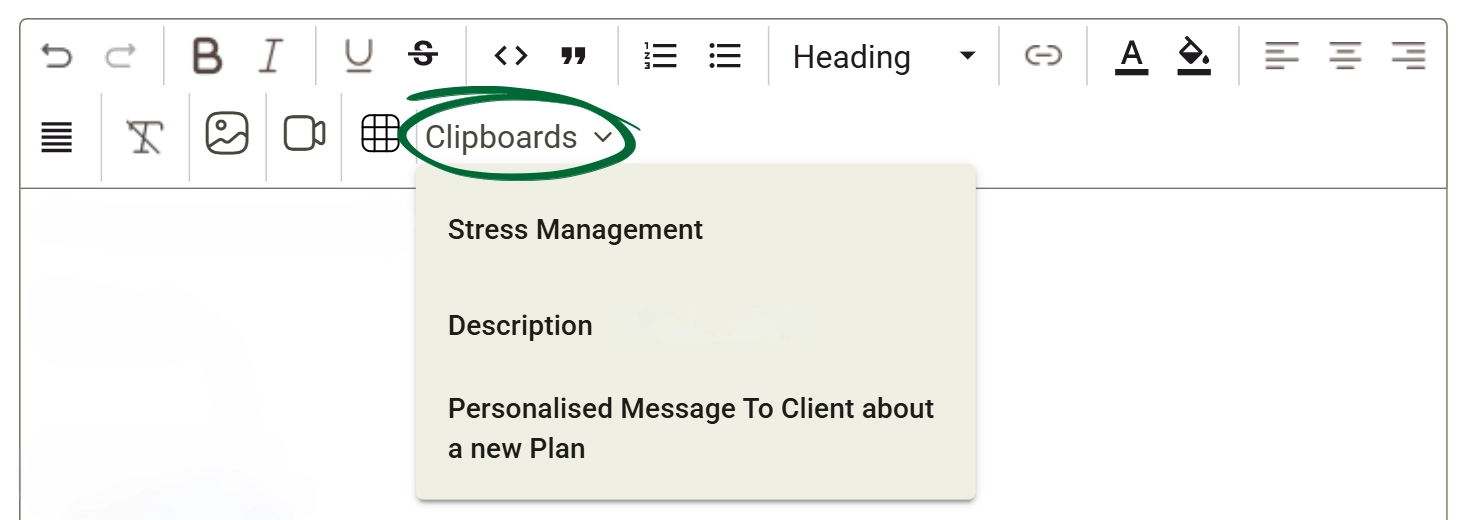
2
Open Clipboard Dropdown
Click the Clipboard option from the editor toolbar.
Open Clipboard Dropdown screenshot
3
Select Clipboard Item
Choose any saved snippet from your clipboard library.
4
Insert Content

The selected content will automatically populate inside the editor.

Frequently Asked Questions (FAQs)
Can I access my clipboard while writing an AI Note?
Yes. The AI Assistant has a direct integration with your clipboard. You can pull in saved snippets or "Clinical Pearls" directly into your session notes without leaving the consultation page.
Is there a character limit for clipboard items?
While there is no strict character limit, the clipboard is optimized for short-to-medium text snippets. For long-form guides or multi-page resources, we recommend using the Documents section.
Can I share my clipboard items with other team members?
Currently, clipboard items are private to your individual practitioner account. If you need to share a resource with a colleague, we recommend creating it as a "Public" document in the Documents section.
Can Clipboard snippets be used in other areas of the platform?
Yes. Clipboard snippets can be inserted directly into: Documents, Forms, Emails, Notes and Action Plans through the integrated Clipboard dropdown available in supported editors.
Troubleshooting & Common Issues
Issue: Changes are not saved
Potential Solution: Ensure you click Save Changes before closing the editor or navigating away. The system does not auto-save drafts in the clipboard editor.
Issue: Cannot find a saved snippet
Potential Solution: Use the search bar at the top of the Clipboard list. Ensure there are no active filters hiding specific categories of items.
Issue: Formatting is lost when pasting
Potential Solution: The clipboard primarily stores plain text and basic formatting. For complex layouts or attachments, consider using the Documents section instead.
Issue: Item not appearing in AI Notes
Potential Solution: Ensure the item is saved in the Global Clipboard. If using the AI assistant, try refreshing the session to sync your latest clipboard updates.
Issue: Team members cannot see shared clipboard item
Potential Solution: Confirm that “Share with the team” has been enabled successfully for that clipboard item.

Next Step

Your resources are now fully set up! Continue exploring the platform to optimize your workflow, or head back to the Dashboard to manage your active clients.

Go to Dashboard
Contact Support

Need Help?

Email Support: [email protected]
