Create custom payment requests sent directly to your clients.
Click on Earnings in the left-hand navigation menu, then select the Payment Links tab at the top of the page.
Click the + Add New Payment Link button located in the upper-right corner above the payment links table.
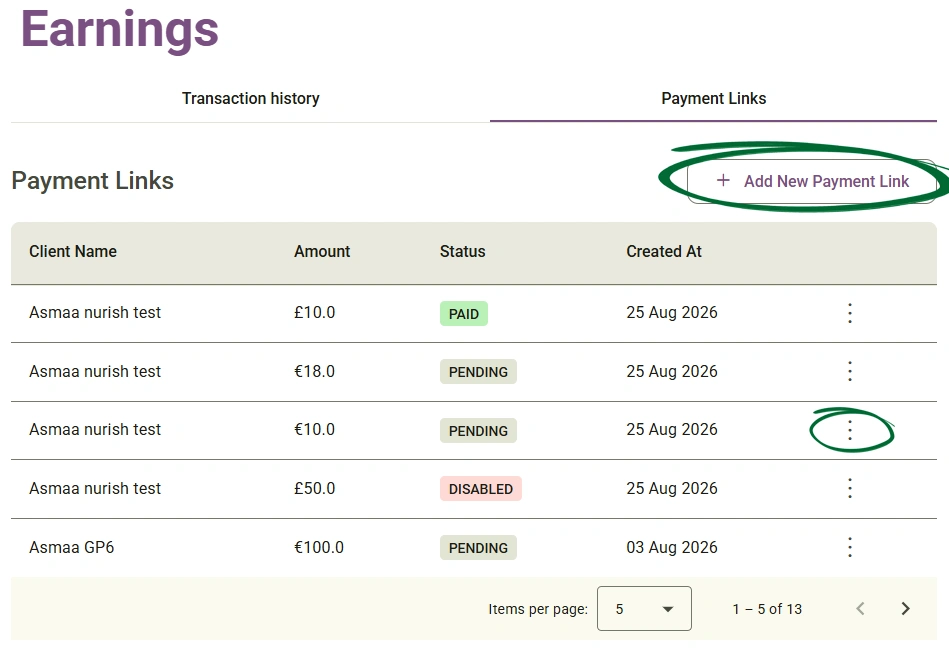
In the modal window that appears, fill out the required information:
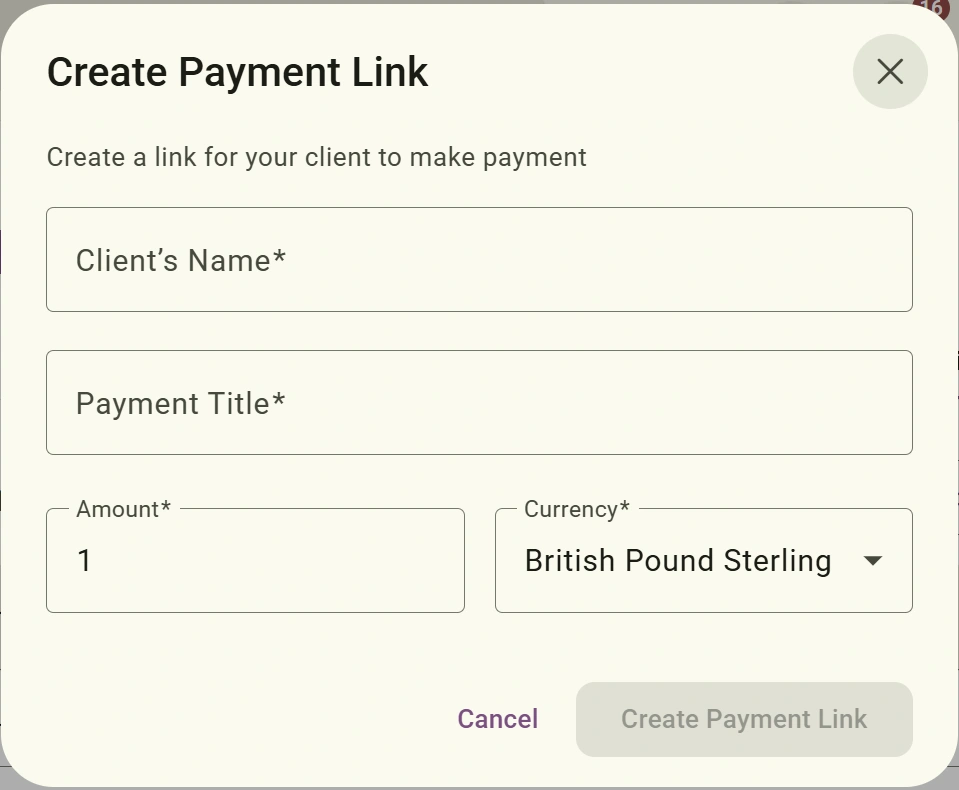
- Client's Name: Enter or select the client receiving the payment request.
- Payment Title: Enter a brief title describing the service or purpose of the payment.
- Amount: Type the numerical cost to be billed.
- Currency: Choose the appropriate currency (British Pound Sterling, Euro, Dollar) from the dropdown list.
Click the Create Payment Link button at the bottom of the modal window. Once generated, the platform automatically sends an email to the client containing a secure Stripe checkout link to complete their payment.
View details, copy active links, or disable pending payment requests
Click on Earnings in the left-hand navigation menu, then select the Payment Links tab at the top of the page.
Locate the payment link you wish to manage in the main table and click the three-dots action icon (⋮) on the far right of that row.
Select one of the available options from the dropdown menu:
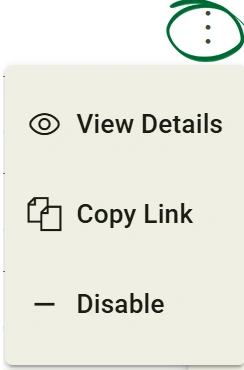
- View Details: Opens a pop-up summarising the link details (Client Name, Amount, Status, exact Creation Time) and gives you an option to copy the link directly.
- Copy Link: Instantly copies the direct Stripe payment URL to your clipboard so you can manually share it via chat or email.
- Disable: Deactivates the payment link so the client can no longer use it to make a payment.
Understand the lifecycle and status indicators of your payment links.
Click on Earnings in the left-hand navigation menu, then select the Payment Links tab at the top of the page.
Look at the Status column in the centre of the table to review the current condition of each generated link.
Identify the meaning of each status badge:
- PENDING: Select or enter the client associated with the payment.
- PAID: Choose the transaction date by clicking the calendar icon.
- DISABLED: Provide a brief note or service name for the payment.
What is the difference between "Amount" and "Net Amount"?
Where can I find the Stripe processing fees for a transaction?
Do I have to download all my transactions at once?
What happens when I create a new payment link?
Can I manually share a payment link with my client?
Can I reactivate a payment link after disabling it?
Issue: My PDF download contains too many transactions / is too large.
Issue: I accidentally created a payment link with the wrong amount or currency
Issue: My client says they didn't receive the payment link email.
Next Step
Now that you've got the hang of how it all works, it’s time to put what you've learnt into action! Head straight over to your Nurish Pro platform to check out your actual client earnings, track your payouts, and watch those numbers roll in.
Go to Earnings