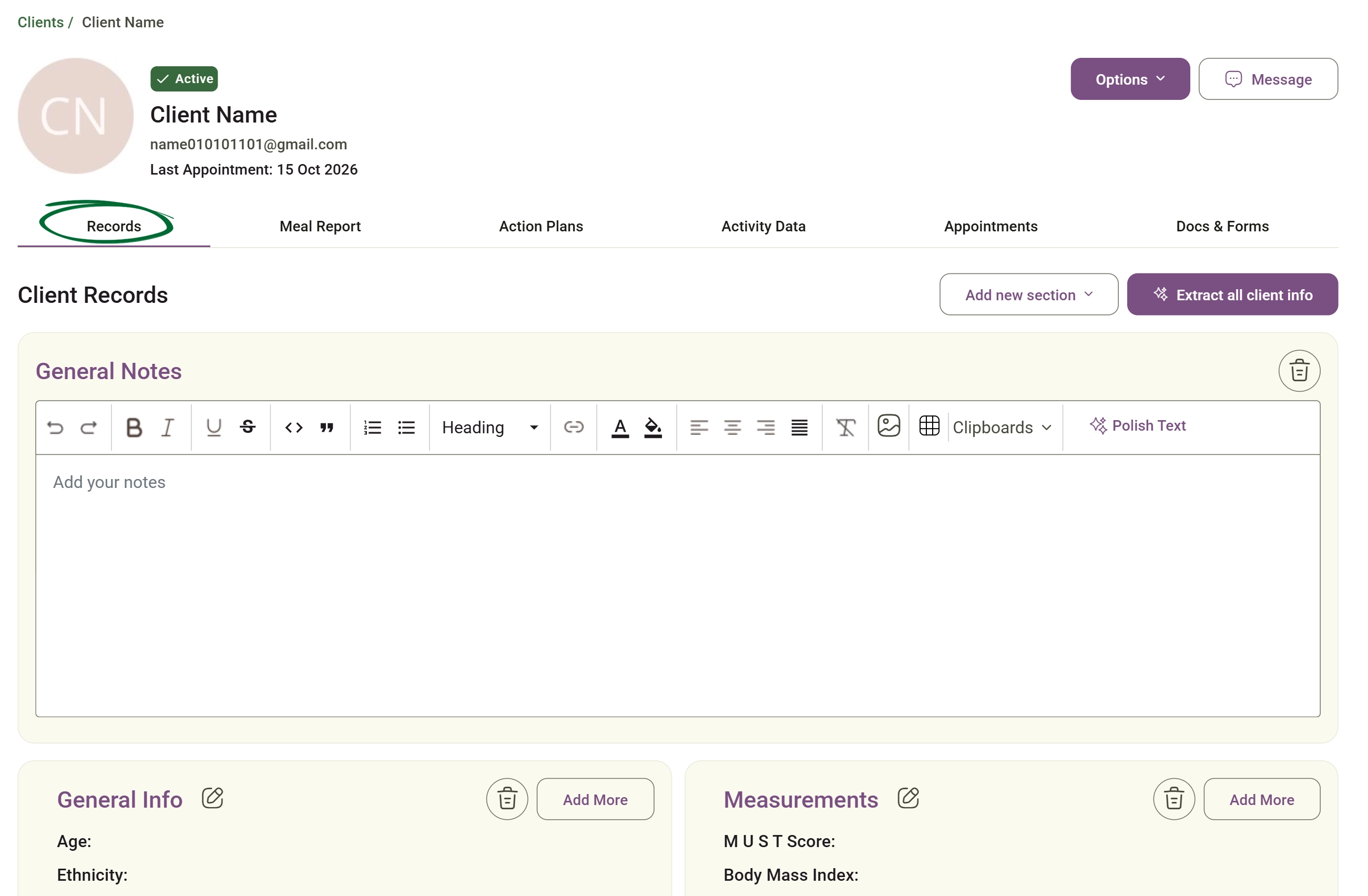
The Records tab serves as your primary clinical repository, pre-populated with default clinical sections such as General Info, Measurements, Clinical Data, and Dietary Intake.
Go to the client's profile, where the Records tab will display as the default view
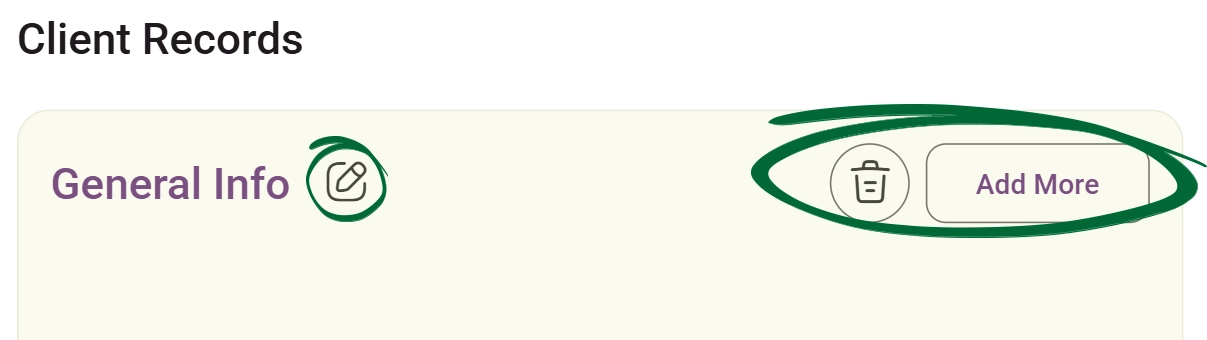
To expand the client profile, click the Add new section button on the right-hand side. Enter your chosen title into the Section Name field, then click Create Section to finalise your changes.

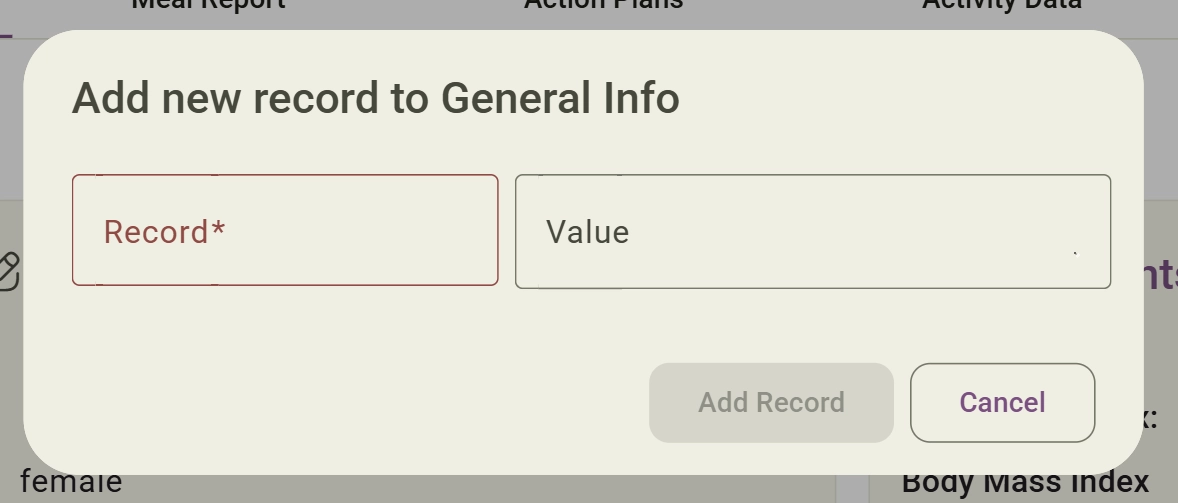
Click the Add More button on your chosen section card to open the "Add new record" overlay. Enter the record name and its value (the value text field is resizable to comfortably accommodate longer clinical notes), then click Add Record to save.
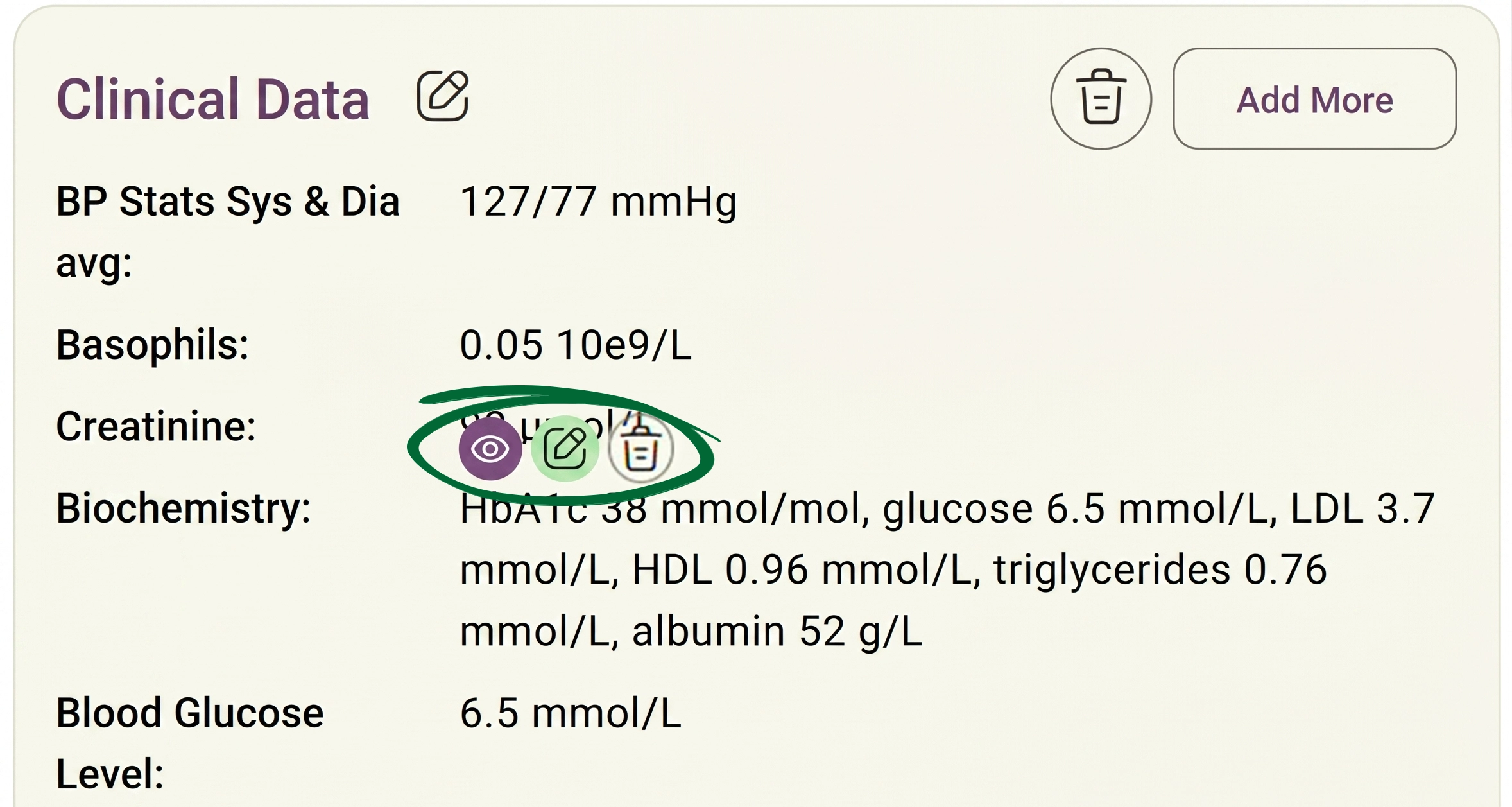
Hover your cursor over any specific record within a section to reveal action icons. Click the Pencil icon to edit the value, or click the Trash icon to delete the record.
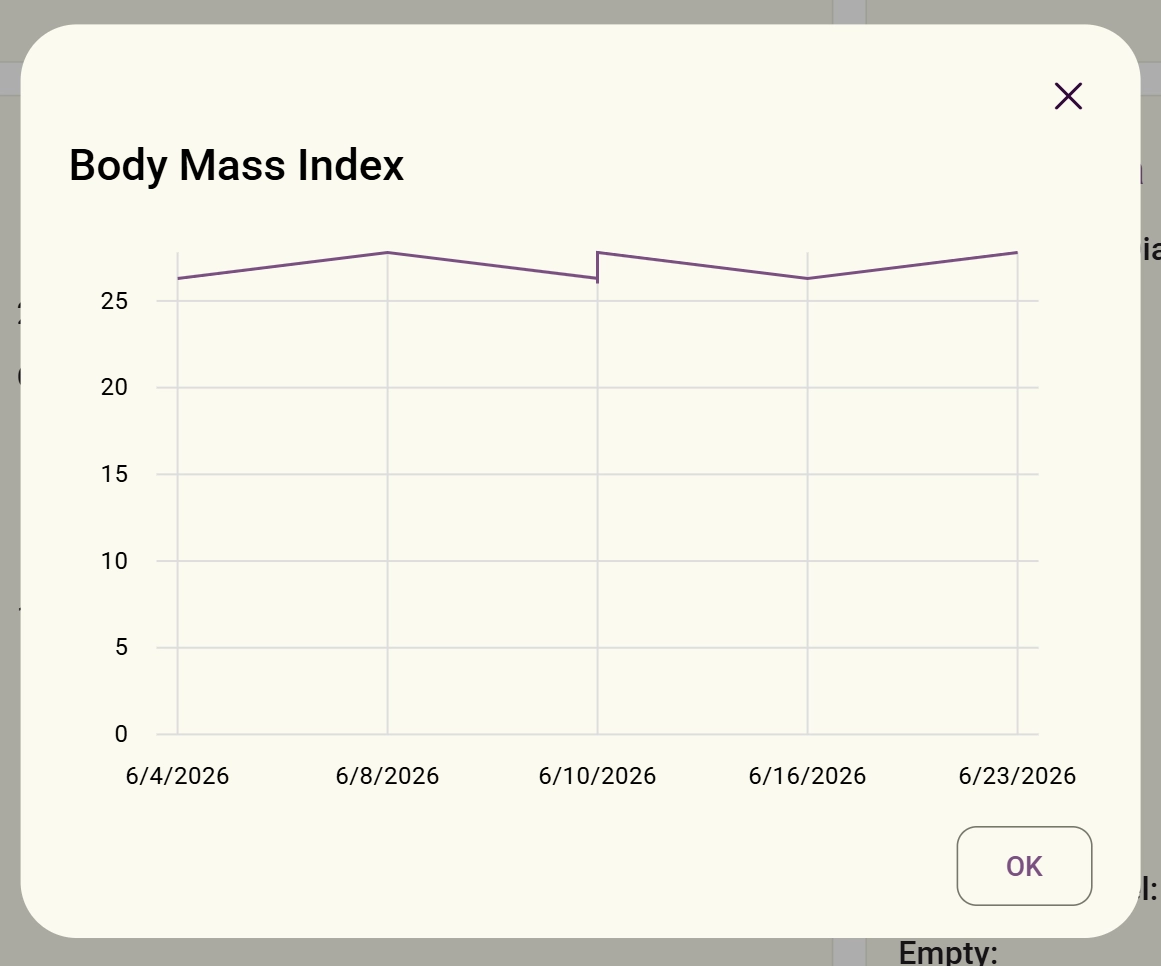
Save time on manual data entry by letting the AI Assistant populate your clinical sections automatically.
Go to the client's profile, where the Records tab will display as the default view
The extracted information will automatically populate into your designated clinical sections, and you can review, edit, or delete as needed.
Easily document client details by creating general ongoing notes or recording specific session notes directly against a booked appointment.
Navigate to the Records tab within your client's profile to access the General Notes editor. Use this space to write down ongoing background details, long-term observation notes, or general updates that apply to the client's overall care journey.
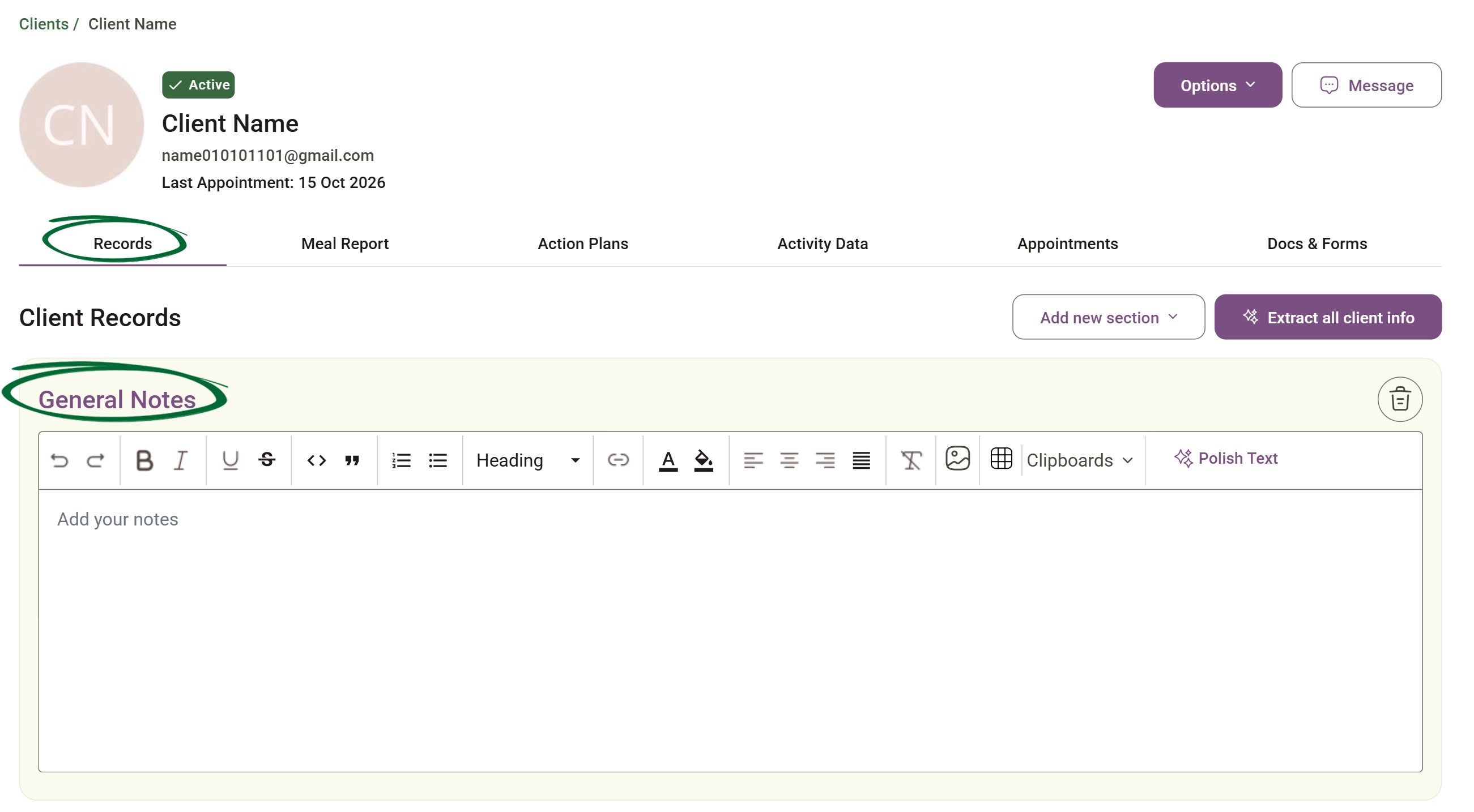
Note: Your work is protected with automatic saving, any updates you make inside the General Notes rich text editor are saved automatically as you type.
Go to the Appointments tab under your client's profile and locate the relevant booked service. Click the Meeting Notes button next to the specific appointment session to type, edit, and format detailed clinical or consultation notes directly tied to that date.
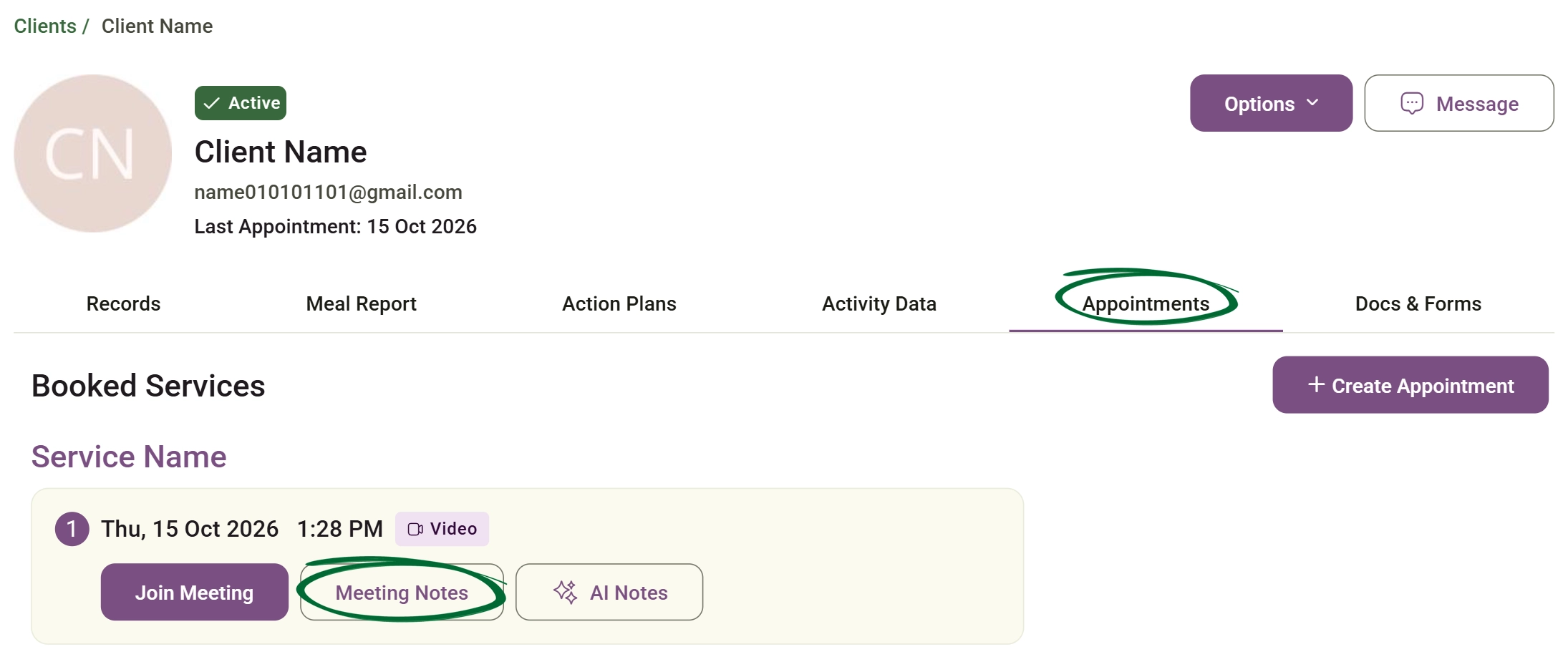
Note: If you would like to record automated session notes using AI, please refer to our [Clinical AI Notes & Assistant] guide.
How does a client upload food diaries for AI analysis?
Am I restricted to using only the default clinical sections?
Can I expand the text box if my clinical notes are quite lengthy?
Where does the AI Assistant gather information from during an automated extraction?
Is it possible to modify or correct information populated by the AI?
Issue: The eye icon does not appear next to a specific record field.
Issue: The "Extract all client info" button did not populate data into the expected area.
Next Step
Your client records are organised! Now, explore Client Communications to learn how to share these insights and updates directly with your clients.
Go to Client Communications