Easily add new clients to your database. Create an individual profile to start managing a client's journey.
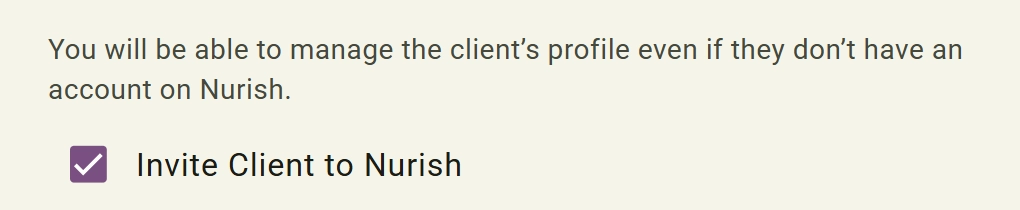
Enabled: The client receives an onboarding invitation email.
Disabled: The client is added to the system without sending an invitation immediately.
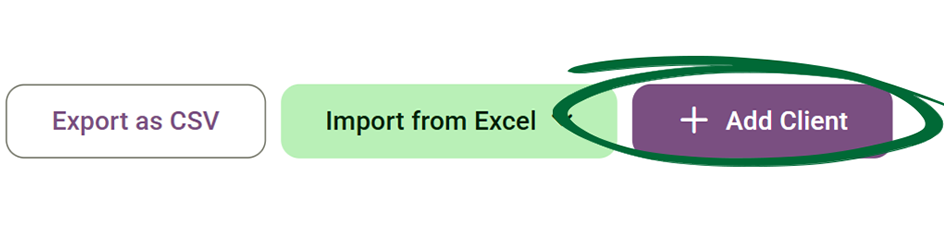
Nurish Pro supports multiple import methods, including standard CSV files and Practice Better imports. Simply choose the method that best matches the type of client data you wish to migrate into your workspace.
Handle large volumes of data by uploading or downloading spreadsheets. Nurish Pro supports multiple import methods including (CSV file, imports Practice Better)
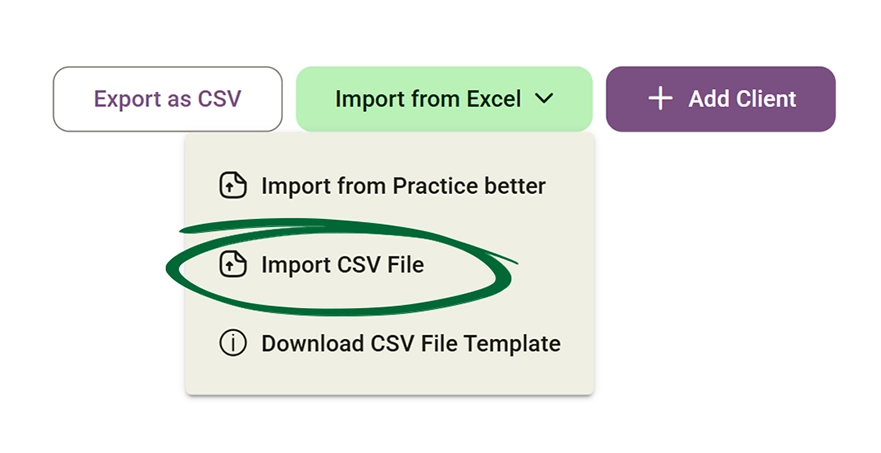
Seamlessly migrate your existing client records from Practice Better (PB) to the Nurish Pro platform for a unified clinical management experience.
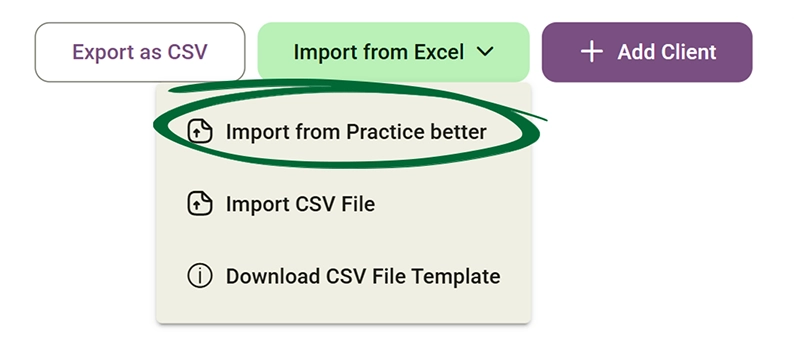
Download your client data for routine administrative backup or authorised external clinical use.

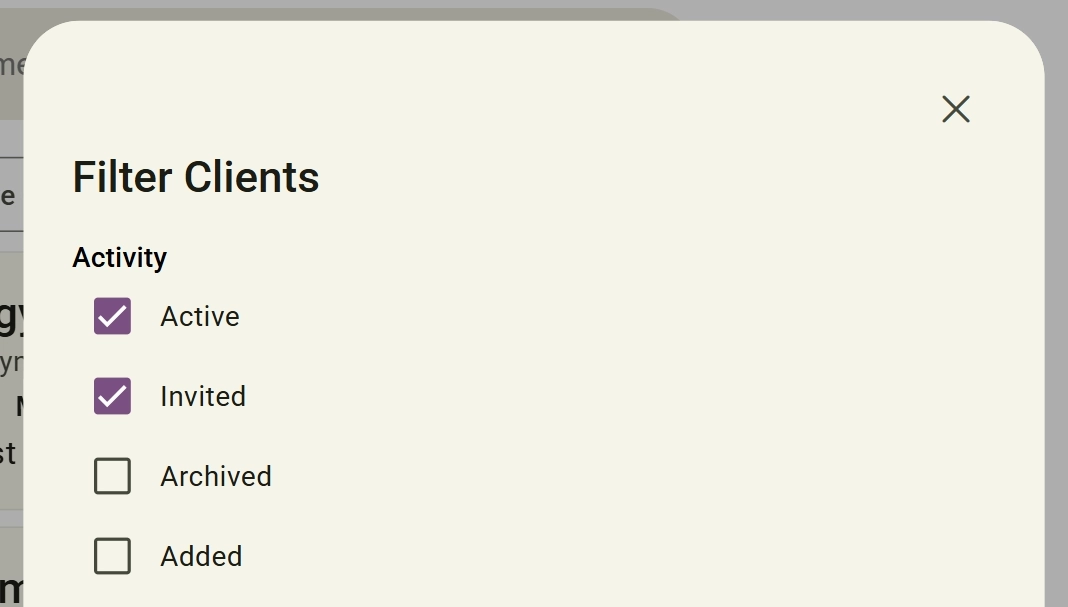
Client statuses help you quickly identify where each client is within the onboarding and booking process.
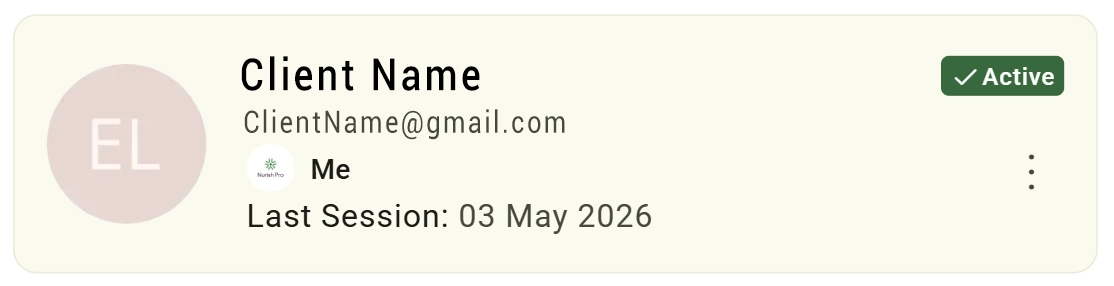
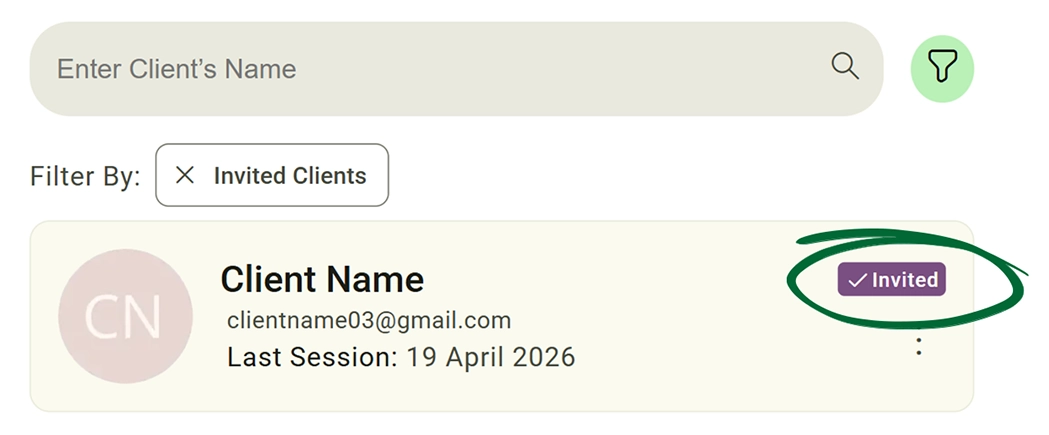
An Invited client means: An invitation has been sent to the client
The client has not yet accepted the invitation.
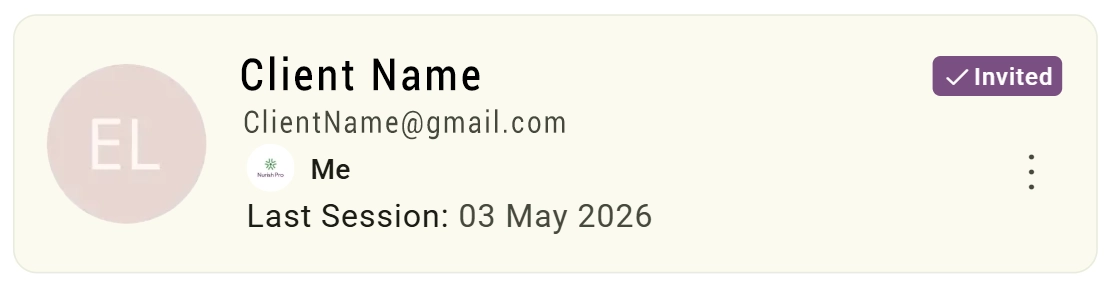
An Archived client means the client has been manually archived by the practitioner.
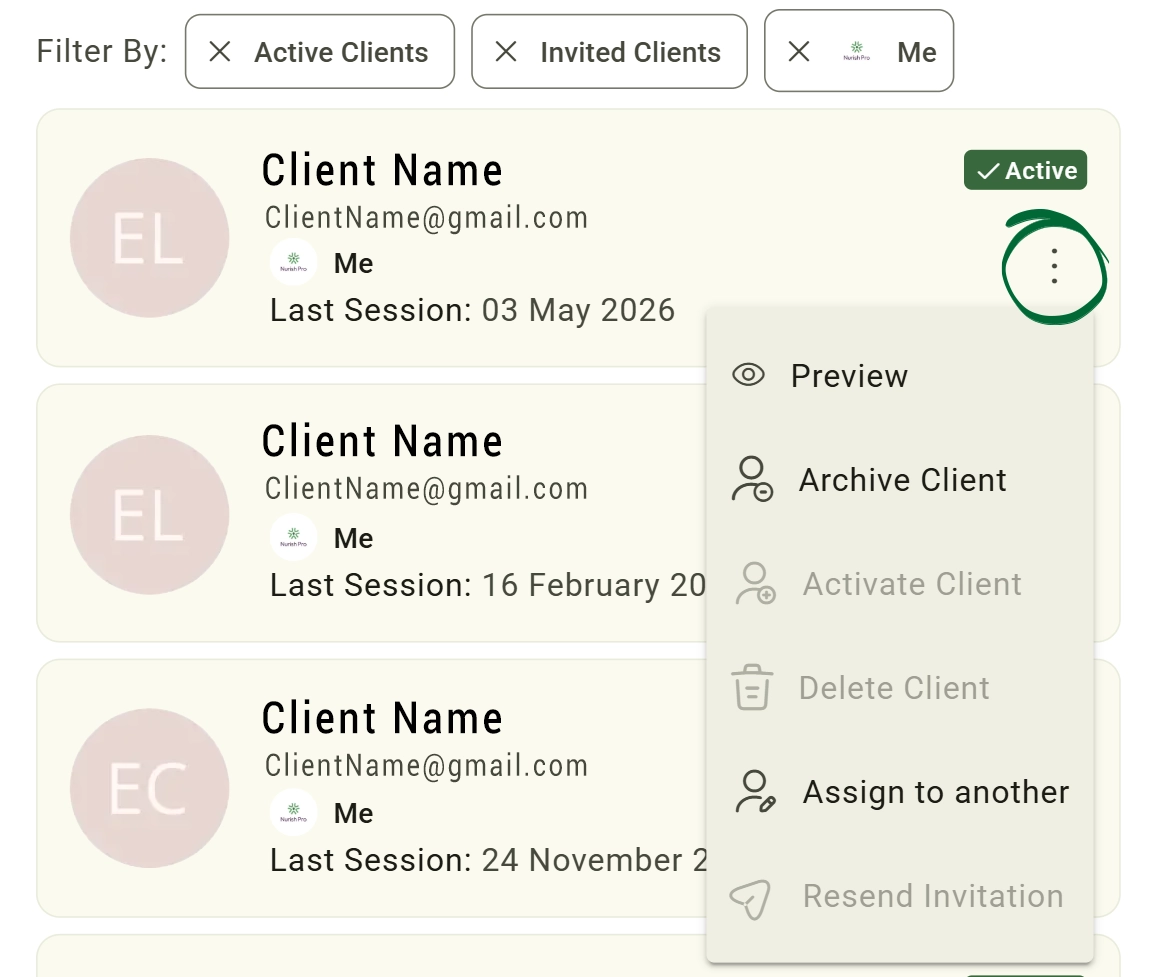
This happens when: The practitioner selects "Archive Client" from the Client Controls or Options Menu.
Archived clients remain stored in the system but are hidden from the active client list.
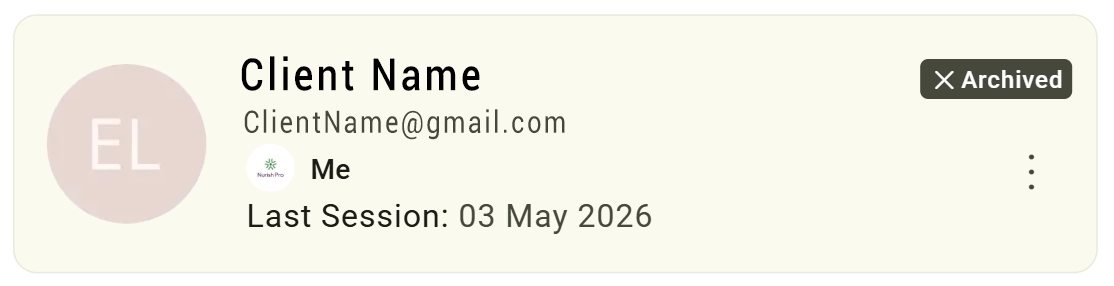
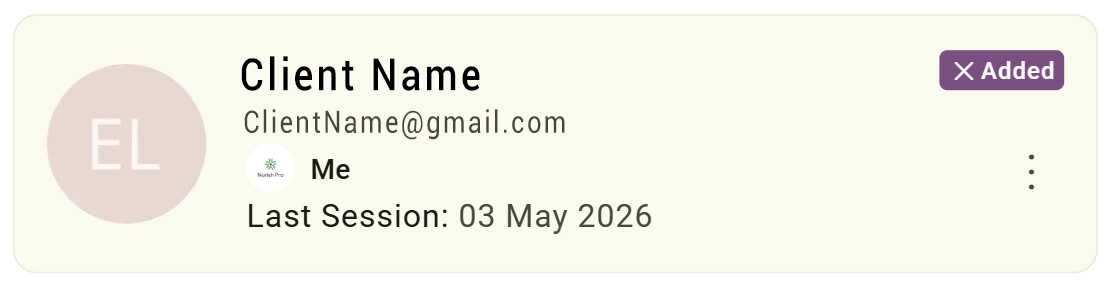
An 'Added client' means the practitioner has created the client profile manually on their side only. An invitation will not be sent, and the 'Add Client to Nurish' checkbox should NOT be selected.
This allows practitioners to maintain an internal database to save client information; the client will not have platform access or receive any notifications.
Manage client lifecycle directly from the client list.
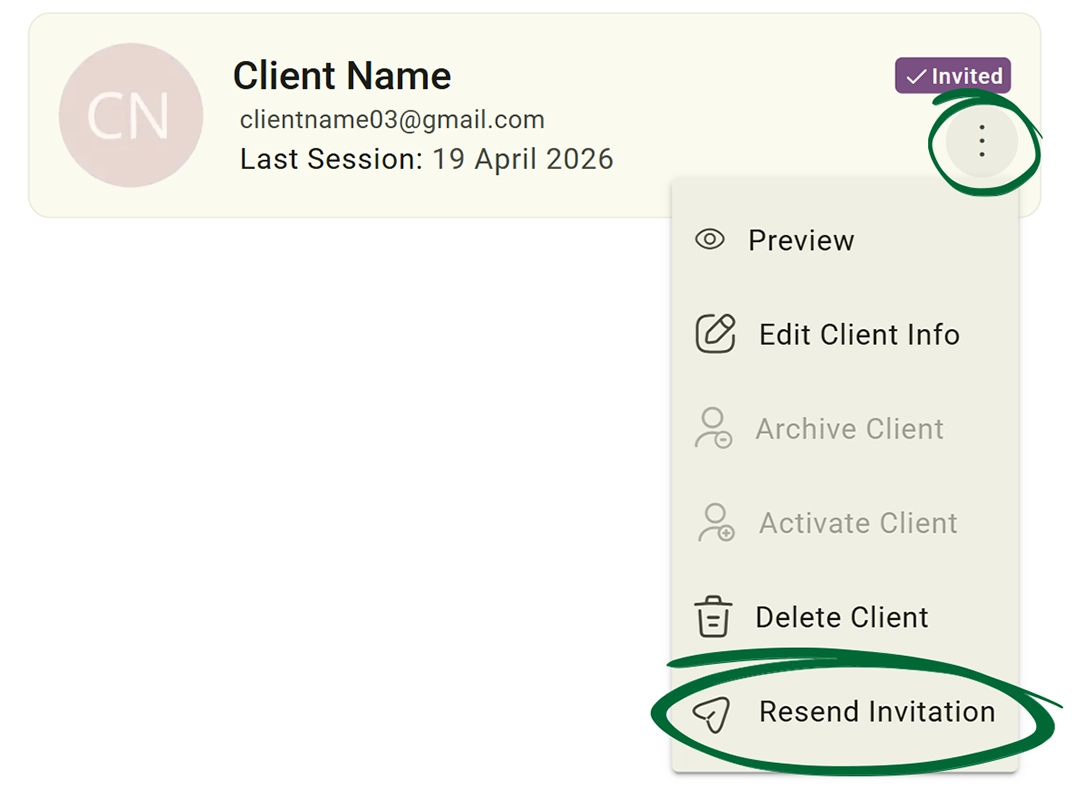
Resend invitation to your clients if the original email invitation is filtered into a "Promotions" or "Spam" folder, or accidentally deleted.
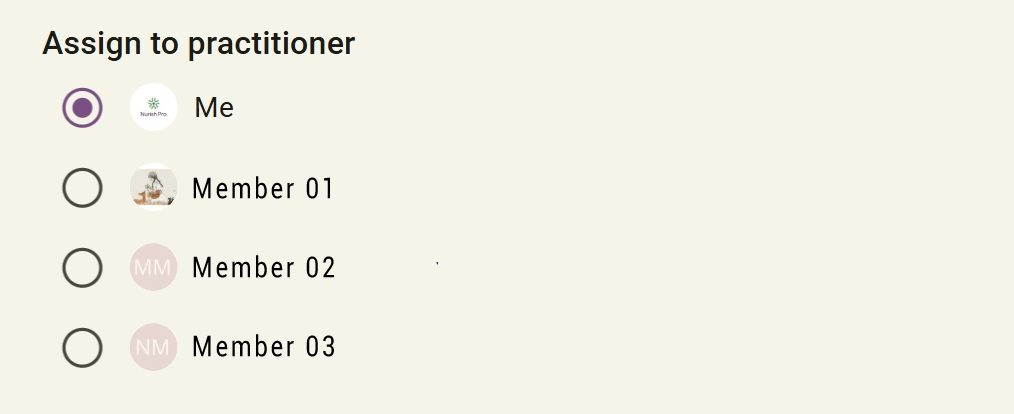
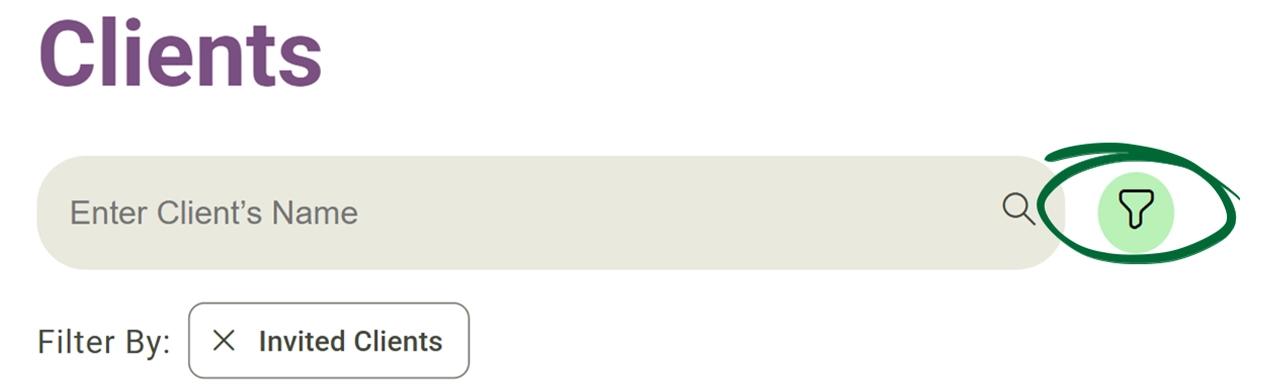
Strategically organise and view your client roster based on their status types, or by their current practitioner (if you are the practitioners' team leader).

Can I add a client without sending an invite immediately?
Does the PB import include clinical notes?
Can I assign clients to different practitioners?
Can I archive clients instead of deleting them?
Issue: I can't find a client I just added
Issue: Add/Save button is greyed out
Issue: Import tool error
Potential Solution: Ensure the file is in .CSV format. Check that the 'Name' and 'Email' columns exist.
Issue: Invite email not received
Issue: Client assigned to wrong practitioner
Issue: Imported CSV columns not recognised
Issue: Archived client not appearing
Next Step
Now that your clients are in the system, go to Appointments & Calendar to sync your schedule and open up your availability.
Go to Appointments & Calendar