Brand Identity & Customisation

Manage your brand identity and customise how your team appears to clients. Professionalism starts with a cohesive brand. This section helps you tailor the Nurish Pro interface and client-facing documents to reflect your clinic’s unique identity.

Edit your team/brand name & bio

Define your clinic's public persona and mission statement.

1
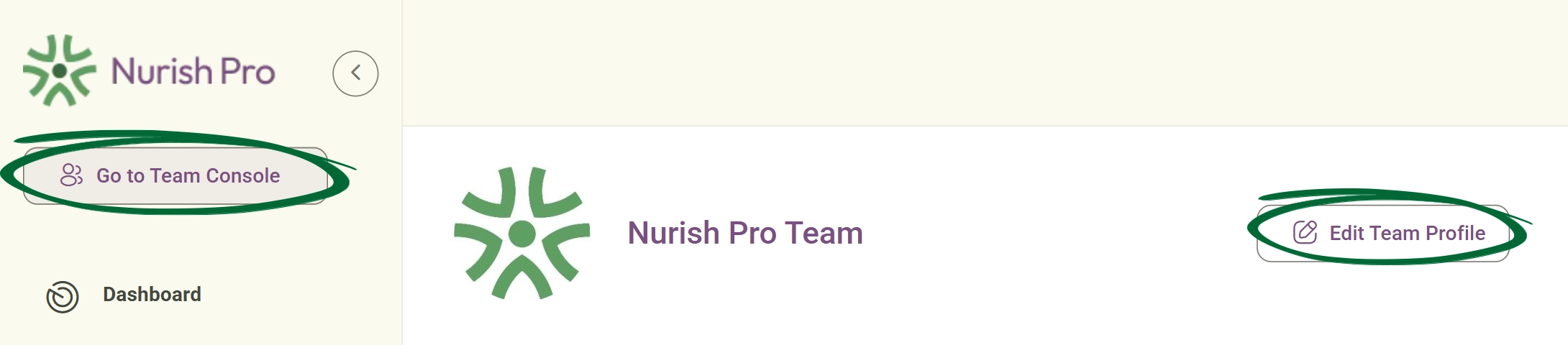
Access Profile Settings
Navigate to Go to Team Console
Open Brand Settings screenshot
2
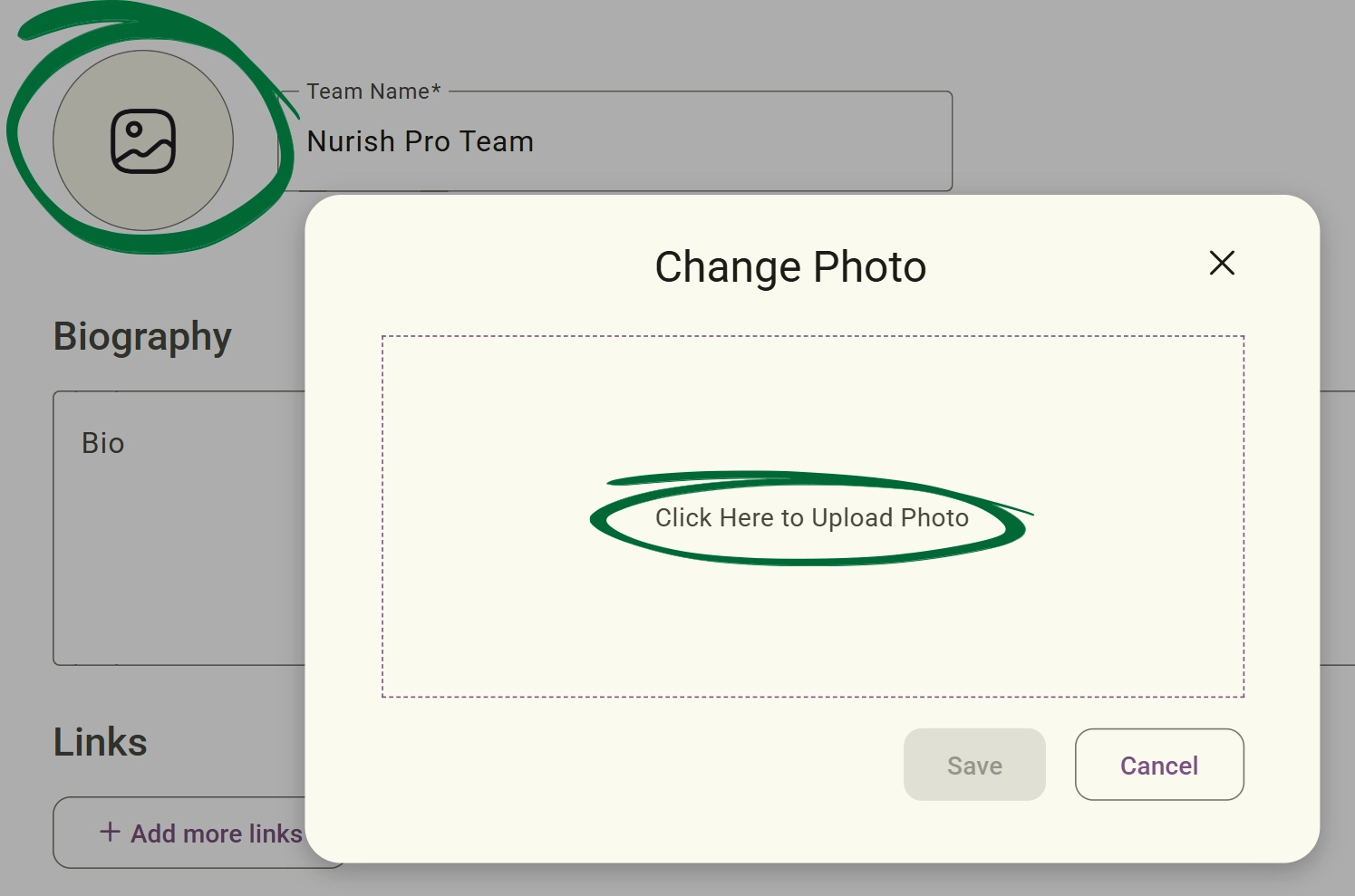
Update Clinic/Team Name:
Enter your clinic or team name as you want it displayed.
3
Compose Your Bio:
Write a short description that represents your brand and services.
4
Add links:
Add professional links (website, Instagram, LinkedIn) to your profile. Select the appropriate link type from the dropdown menu before adding the URL.
5
Save Updates:
Click save to apply your changes.
Tip: Use your bio to highlight your niche (e.g., "Specialising in postnatal nutrition and metabolic health") to build immediate trust with new clients. 

Add & Manage Team Members

Collaborate with fellow practitioners and administrative staff.
(Note: This feature is exclusive to Team and Enterprise subscriptions.)
1
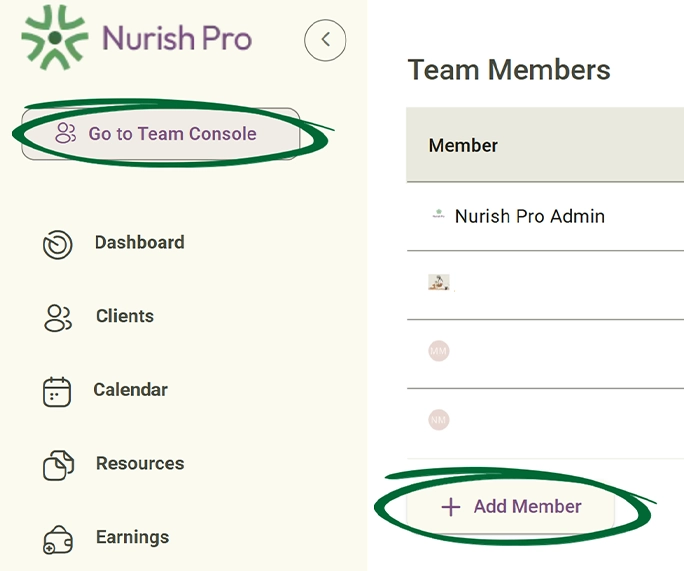
Go to Team Section
Open the Team Management tab.
add member screenshot
2
Invite Member
Click “Add Member” and enter their email address.
3
Send Invitation
Send the invite and wait for them to join
4
Manage Existing Members

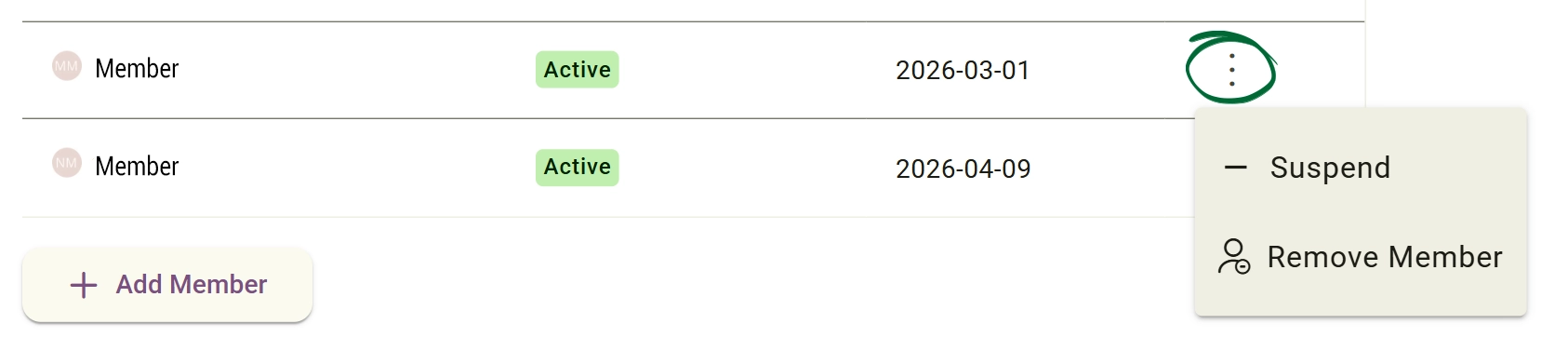
To deactivate a team member:
Navigate to the Team tab Click the three dots (...) next to their name
Select "Suspend"  This immediately removes their access only while preserving their place in the team..

Note: If you choose "Remove Member", the member will be completely deleted and must be re-added from scratch if needed again.
Manage Existing Members screenshot
Practitioner Profile

Manage individual practitioner details within the brand ecosystem.
1
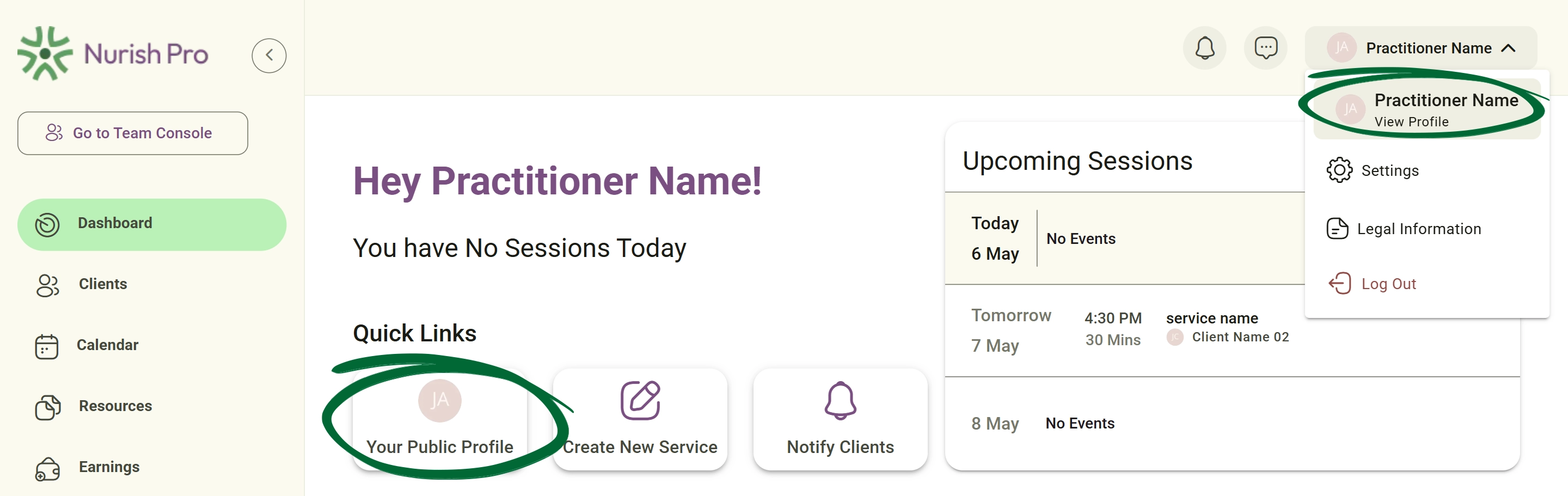
Navigate to Profile
Select Practitioner Profile within the Brand or Account settings.
Navigate to Profile screenshot
2
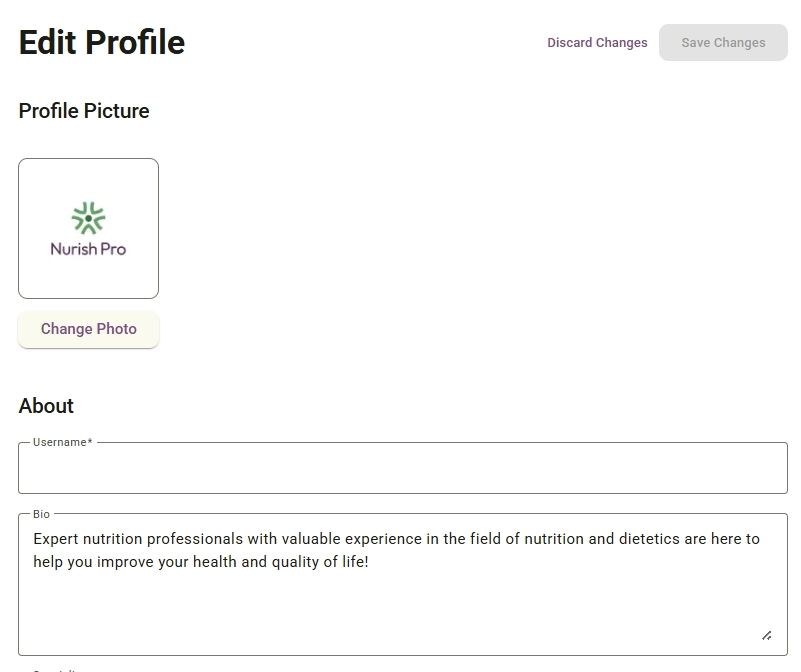
Edit Profile Picture
Your profile picture will automatically appear across: Client Portal, Automated emails, PDF exports and meal plans, and Invoices.
Navigate to Profile screenshot
3
Verify Associations
Add or update your specific clinical titles and certifications. Examples may include ( BANT CORU, NNA, CSTA)
4
Add Multiple Associations
Use “+ Another Association” to add additional memberships or professional bodies
5
Manage Association Entries
You can remove outdated associations using the delete icon next to each entry.
6
Link Social Channels

Add professional links (website, Instagram, LinkedIn) to your profile.

Select the appropriate link type from the dropdown menu before adding the URL.

7
Add Multiple Links

Use “+ Add more links” to include multiple professional channels.

8
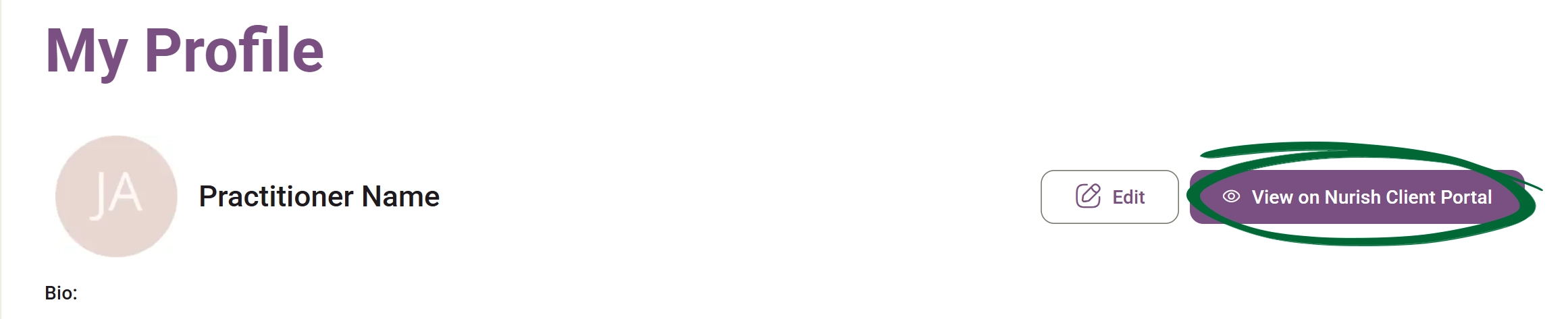
Preview Your Public Profile

Use “View on Nurish Client Portal” to preview how clients will see your profile and services.
Navigate to Profile screenshot
9
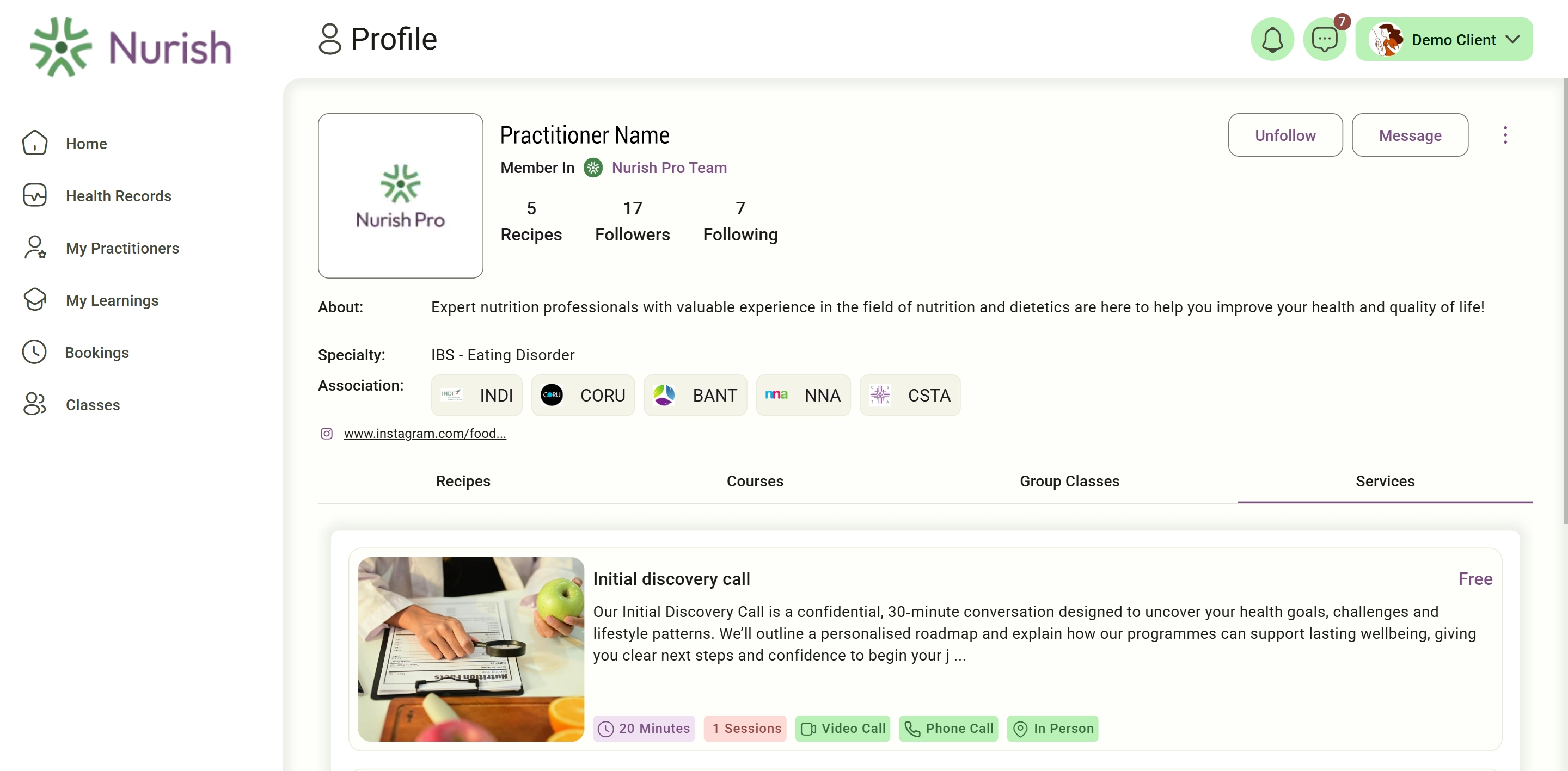
How your clients see you

Practitioners may publish recipes, educational posts, courses, group classes, and services. Your practitioner profile may also display consultation services, pricing, session duration, number of sessions, and appointment types (video call, phone, in-person). These help build authority, increase engagement, and create a stronger practitioner presence within the Nurish ecosystem.
Navigate to Profile screenshot
Tip: Keeping your personal profile updated ensures that every document you sign or share carries the correct professional weight and provides clients with easy ways to connect with your broader work
Frequently Asked Questions (FAQs)
Can I have different logos for different team members?
Yes. Practitioners can upload their own personal logo or profile image to represent themselves across client-facing areas such as meal plans, emails, and client portal experiences. Practitioners can also choose to use their personal profile logo as their individual practitioner branding across the platform However, the Team Console profile image remains shared across the workspace and currently supports one unified team image for all team members
Can I add multiple professional associations?
Yes. Use the “+ Another Association” option to add multiple memberships and registration numbers.
Can I add more than one social link?
Yes. You can add multiple professional links including Instagram, LinkedIn, and websites.
Can clients view my practitioner profile publicly?
Yes. Clients can view your public-facing profile through the Nurish Client Portal, including your bio, specialty, credentials, links, and available services.
How do I remove a team member who has left the clinic?
Navigate to the Team tab, click the three dots (⋮) next to the member's name, and select Remove Member / Suspend.
Troubleshooting & Common Issues
Issue: Logo looks blurry or pixelated
Solution: Ensure your image is a high-resolution.
Issue: Changes aren't saving
Solution: Check your internet connection. Ensure all mandatory fields (marked with an asterisk) are filled in.
Issue: "Add Member" button is greyed out
Solution: You may have reached the seat limit for your current subscription plan.
Issue: Invite email not received
Solution: Ask the team member to check their "Junk" folder. If needed, you can easily remove and re-add entries to keep your team console accurate.
Issue: Association or links not appearing publicly
Solution: Ensure all fields are saved correctly and preview your profile through the Client Portal view

Now that your brand identity is set

Head over to Payments & Referrals to connect your Stripe account and start accepting Payments.

Go to Payment Integration
Contact Support

Still need help?

Email Support: [email protected]